> ## Documentation Index
> Fetch the complete documentation index at: https://docs.lovable.dev/llms.txt
> Use this file to discover all available pages before exploring further.
# Advanced settings
> Manage the infrastructure behind your app's built-in backend (Cloud): resize it, increase disk space, export your data, and pause or remove it.
Advanced settings is where you manage the infrastructure behind a project's built-in backend (Cloud): its instance size, disk space, data exports, and lifecycle. To open it, go to **Cloud tab → Overview → Advanced settings**.
The **General** card shows the project's hosting region (**Project location**) and its Postgres **Database version**. The region is set when Cloud is enabled and cannot be changed afterwards; see [Region selection](/features/cloud#region-selection).
## Upgrade instance
Use the advanced settings to view and manage your current instance size. A larger instance allows your app to handle more users and traffic. Keep in mind that a larger instance can increase Cloud usage and use more credits as your app usage grows.
* **Free plan users**: upgrade from **Tiny** to a larger instance by upgrading your plan at any time
* **Paid plan users**: choose a new instance size (**Tiny**, **Mini**, **Small**, **Medium**, or **Large**) from the options below. Larger sizes handle more traffic and cost more credits per hour while your app runs:
* **Tiny**: great for trying things out
* **Mini**: reliable for early projects
* **Small**: room to grow with your app
* **Medium**: steady choice for regular use
* **Large**: confident option for higher demand
Resizing takes a couple of minutes, with a brief interruption while the instance restarts. You can't make further changes until the resize finishes.
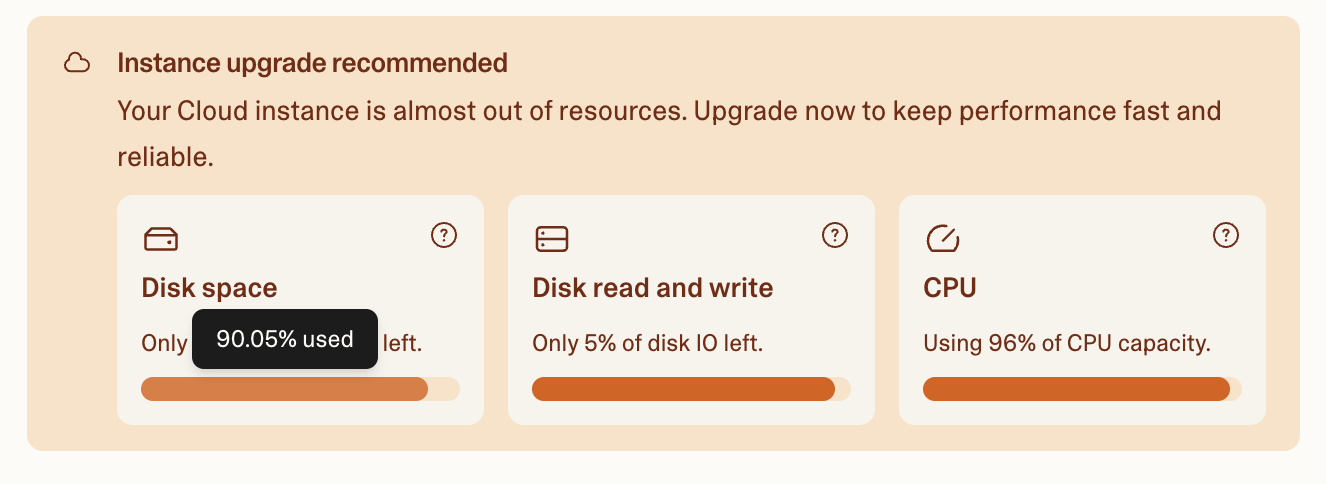
Lovable **alerts** you when approaching your backend resource limits. This lets you upgrade your instance in a timely manner to ensure fast and reliable performance.
The alert is triggered when any of the following happens:
* There is less than 10% of disk space left
* IO budget is less than 50%
* CPU load is above 80%
The upgrade alert also includes a detailed breakdown of usage (disk space, disk IO, CPU).
 Before upgrading, check whether slow queries are the real bottleneck. See [Find and fix database performance problems](/features/database#find-and-fix-database-performance-problems).
### Ask Lovable to resize your instance
On **Pro plans and higher**, on projects using the built-in backend (Cloud), you can also ask Lovable to resize the instance directly in chat, instead of opening Advanced settings yourself. When you describe database slowness, Lovable can surface a resize approval card with a size picker (Tiny through Large, with your current size pre-selected). The resize only applies after you pick a size and approve it.
Prompt Lovable in chat with something like:
```text wrap theme={null}
My database feels slow under load. Resize my Cloud instance to a larger size.
```
Lovable first confirms that compute (not disk space or a slow query) is the bottleneck, then offers the size picker. Downgrades to a smaller size are allowed.
## Increase disk space
The **Disk space usage** card shows how much of the instance's disk your project uses. If the disk is nearly full, enter a larger size and click **Increase disk size**.
A few constraints apply:
* Disk size can only be increased, never decreased.
* You can resize the disk once every 4 hours.
* Resizing takes a few minutes, and a larger disk increases Cloud usage.
## Export Lovable Cloud data
Use **Export project data** when you need a copy of your database before moving backend infrastructure outside Lovable.
The export contains your full database, both structure and data. It does not include files in storage buckets, edge function code, or your project's secrets, so plan to move those separately. User passwords are not exported in a usable form either, so plan a password reset flow for migrated users. You can run one export per day.
In your project, go to **Cloud tab → Overview → Advanced settings**.
In **Export project data**, click **Export data**.
In the **Database** card, click **Export**. In the confirmation dialog that appears, click **Start export**.
Lovable emails you when the export is ready. The export is saved to your project's Cloud storage, so download it from **Cloud tab → Storage**. Exports can no longer be downloaded after Cloud is removed.
Database exports are limited to 5 GB, and you can request one export every 24 hours.
To download storage files, go to **Cloud tab → Storage**. Storage files are separate from your database and aren't included in the database export. See [Storage](/features/storage).
## Pause Cloud
If you want to save credits on a project you're not actively using, choose **Pause Cloud** to pause its backend: database, authentication, storage, and Edge Functions. You can resume the project at any time.
Lovable automatically pauses Cloud projects after a period of inactivity, so you usually don't need to pause an idle project yourself. Pause manually when your project has scheduled jobs or other background activity that keeps it active, since auto-pause won't kick in for those projects.
### How to pause your project
To pause your project, go to **Cloud tab → Overview → Advanced settings**, then in **Pause Cloud**, click **Pause**. In the confirmation dialog that appears, click **Pause Cloud**.
While paused, your backend is unavailable, and your deployed app can't read or write data until you resume.
### Resume a paused project
When a project is paused due to inactivity, open it in the editor and click **Wake up** in the chat notice. A project can also pause with the message "This project is paused due to a low balance", which happens when your workspace runs out of credits or a credit limit is triggered. In that case, add credits or adjust the limit first. See [Credits and usage](/introduction/credits-and-usage).
Storage usage continues while a project is paused because your data stays in place. To stop storage usage entirely, remove Lovable Cloud from the project instead.
If your app uses Edge Functions for AI features, payments, or sending emails, those stop working while paused, since Edge Functions are unavailable. This mainly affects apps built before May 2026, since newer apps don't depend on Edge Functions.
## Remove Lovable Cloud
Use **Remove Lovable Cloud** when you no longer want a project to use the built-in database, storage, authentication, or Edge Functions.
Removing Lovable Cloud permanently deletes your Cloud instance and cannot be undone. Export your database and download any storage files you need before continuing.
In your project, go to **Cloud tab → Overview → Advanced settings**.
In **Remove Lovable Cloud**, click **Remove**.
Check both boxes to confirm you understand Cloud features will stop working and that unexported data may be lost. The second box unlocks only after the first is checked.
Enter the project's display name exactly to confirm.
Click **Remove** to permanently delete the Cloud instance for the project.
## FAQ
This can happen if you have too much data running on a smaller Cloud project instance.
To fix it, go to **Cloud tab → Overview → Advanced settings**, then choose a larger instance size. After you switch to a larger instance, give it a few minutes to update. Your data should then load, and your Cloud project should work again.
A larger instance size can increase Cloud usage and use more credits. To review Cloud usage, go to **Settings → Plans & credit usage → Usage details** and select **Run credits**.
No. Pausing stops compute usage, but storage usage continues while paused because your data stays in place. To stop Cloud usage for the project entirely, remove Lovable Cloud instead.
A paused Cloud project only resumes when you explicitly click **Wake up** on the paused project card in **Cloud tab → Overview**. Visiting your deployed app, other traffic, or waiting does not resume a paused project.
Lovable does not provide a one-click transfer from the built-in backend (Cloud) to Supabase. You can export your database from **Cloud tab → Overview → Advanced settings** and move your code through the [GitHub](/integrations/github) or [GitLab](/integrations/gitlab) integration.
Storage files are exported separately from **Cloud tab → Storage**. You must reconfigure authentication, secrets, environment variables, and any external services in the destination platform. For a step-by-step walkthrough, see [Host backend and data on a managed provider](/tips-tricks/external-deployment-hosting#host-backend-and-data-on-a-managed-provider-supabase-example).
Before upgrading, check whether slow queries are the real bottleneck. See [Find and fix database performance problems](/features/database#find-and-fix-database-performance-problems).
### Ask Lovable to resize your instance
On **Pro plans and higher**, on projects using the built-in backend (Cloud), you can also ask Lovable to resize the instance directly in chat, instead of opening Advanced settings yourself. When you describe database slowness, Lovable can surface a resize approval card with a size picker (Tiny through Large, with your current size pre-selected). The resize only applies after you pick a size and approve it.
Prompt Lovable in chat with something like:
```text wrap theme={null}
My database feels slow under load. Resize my Cloud instance to a larger size.
```
Lovable first confirms that compute (not disk space or a slow query) is the bottleneck, then offers the size picker. Downgrades to a smaller size are allowed.
## Increase disk space
The **Disk space usage** card shows how much of the instance's disk your project uses. If the disk is nearly full, enter a larger size and click **Increase disk size**.
A few constraints apply:
* Disk size can only be increased, never decreased.
* You can resize the disk once every 4 hours.
* Resizing takes a few minutes, and a larger disk increases Cloud usage.
## Export Lovable Cloud data
Use **Export project data** when you need a copy of your database before moving backend infrastructure outside Lovable.
The export contains your full database, both structure and data. It does not include files in storage buckets, edge function code, or your project's secrets, so plan to move those separately. User passwords are not exported in a usable form either, so plan a password reset flow for migrated users. You can run one export per day.
In your project, go to **Cloud tab → Overview → Advanced settings**.
In **Export project data**, click **Export data**.
In the **Database** card, click **Export**. In the confirmation dialog that appears, click **Start export**.
Lovable emails you when the export is ready. The export is saved to your project's Cloud storage, so download it from **Cloud tab → Storage**. Exports can no longer be downloaded after Cloud is removed.
Database exports are limited to 5 GB, and you can request one export every 24 hours.
To download storage files, go to **Cloud tab → Storage**. Storage files are separate from your database and aren't included in the database export. See [Storage](/features/storage).
## Pause Cloud
If you want to save credits on a project you're not actively using, choose **Pause Cloud** to pause its backend: database, authentication, storage, and Edge Functions. You can resume the project at any time.
Lovable automatically pauses Cloud projects after a period of inactivity, so you usually don't need to pause an idle project yourself. Pause manually when your project has scheduled jobs or other background activity that keeps it active, since auto-pause won't kick in for those projects.
### How to pause your project
To pause your project, go to **Cloud tab → Overview → Advanced settings**, then in **Pause Cloud**, click **Pause**. In the confirmation dialog that appears, click **Pause Cloud**.
While paused, your backend is unavailable, and your deployed app can't read or write data until you resume.
### Resume a paused project
When a project is paused due to inactivity, open it in the editor and click **Wake up** in the chat notice. A project can also pause with the message "This project is paused due to a low balance", which happens when your workspace runs out of credits or a credit limit is triggered. In that case, add credits or adjust the limit first. See [Credits and usage](/introduction/credits-and-usage).
Storage usage continues while a project is paused because your data stays in place. To stop storage usage entirely, remove Lovable Cloud from the project instead.
If your app uses Edge Functions for AI features, payments, or sending emails, those stop working while paused, since Edge Functions are unavailable. This mainly affects apps built before May 2026, since newer apps don't depend on Edge Functions.
## Remove Lovable Cloud
Use **Remove Lovable Cloud** when you no longer want a project to use the built-in database, storage, authentication, or Edge Functions.
Removing Lovable Cloud permanently deletes your Cloud instance and cannot be undone. Export your database and download any storage files you need before continuing.
In your project, go to **Cloud tab → Overview → Advanced settings**.
In **Remove Lovable Cloud**, click **Remove**.
Check both boxes to confirm you understand Cloud features will stop working and that unexported data may be lost. The second box unlocks only after the first is checked.
Enter the project's display name exactly to confirm.
Click **Remove** to permanently delete the Cloud instance for the project.
## FAQ
This can happen if you have too much data running on a smaller Cloud project instance.
To fix it, go to **Cloud tab → Overview → Advanced settings**, then choose a larger instance size. After you switch to a larger instance, give it a few minutes to update. Your data should then load, and your Cloud project should work again.
A larger instance size can increase Cloud usage and use more credits. To review Cloud usage, go to **Settings → Plans & credit usage → Usage details** and select **Run credits**.
No. Pausing stops compute usage, but storage usage continues while paused because your data stays in place. To stop Cloud usage for the project entirely, remove Lovable Cloud instead.
A paused Cloud project only resumes when you explicitly click **Wake up** on the paused project card in **Cloud tab → Overview**. Visiting your deployed app, other traffic, or waiting does not resume a paused project.
Lovable does not provide a one-click transfer from the built-in backend (Cloud) to Supabase. You can export your database from **Cloud tab → Overview → Advanced settings** and move your code through the [GitHub](/integrations/github) or [GitLab](/integrations/gitlab) integration.
Storage files are exported separately from **Cloud tab → Storage**. You must reconfigure authentication, secrets, environment variables, and any external services in the destination platform. For a step-by-step walkthrough, see [Host backend and data on a managed provider](/tips-tricks/external-deployment-hosting#host-backend-and-data-on-a-managed-provider-supabase-example).