> ## Documentation Index
> Fetch the complete documentation index at: https://docs.lovable.dev/llms.txt
> Use this file to discover all available pages before exploring further.
# Design systems
> Create reusable design systems in Lovable to standardize React component libraries, styling guidelines, and setup across enterprise projects.
Lovable design systems are available on **Enterprise plans** and work natively with design systems that are implemented as React components.
**Design systems** let you define your component library, styling guidelines, and installation instructions once, and reuse them across every project in your workspace. Unlike templates that copy files at project start, design systems provide ongoing instructions that Lovable reads and applies during each project generation.
In Lovable, a design system is created as a **dedicated project**. This project serves as the source of truth for your design system and can be connected to other projects in your workspace.
### What you get
* Centralized source of truth for UI components and styles
* Automatic propagation of updates to all connected projects
* Clear, enforceable design and code guidelines during generation
## How design systems work
A design system in Lovable defines how components, styles, and setup instructions are applied across projects. Design systems are regular Lovable projects and can be opened and edited like any other project.
### What a design system consists of
A design system in Lovable combines three core parts:
1. **Components**: Your React component library (public or private npm packages)
2. **Guidelines**: Style rules, usage patterns, and component specifications
3. **Installation**: Setup instructions and required configuration
If you already have these in place, you can create a **design system project** in Lovable and reference your existing materials. If your documentation is scattered or incomplete, you can create and improve the design system directly inside Lovable.
### The design system project and the `.lovable` folder
The design system project owns a special `.lovable` folder. This folder contains the instructions Lovable uses when generating code in connected projects, including:
* `system.md`: Core installation instructions and high-level guidelines that are always loaded for connected projects
* `rules/`: Individual Markdown files with component specifications, guidelines, and patterns that Lovable can reference during project generation.
### How design systems are applied to projects
When a project is connected to a design system, Lovable reads the contents of the design system’s `.lovable` folder and applies those rules during project generation.
Updates made to the design system project are picked up by all connected projects the next time Lovable generates code.
### Key notes and limitations
* The `.lovable` folder is owned by the design system project and cannot be edited from connected projects.
* Updates to a design system apply automatically to all projects connected to it on the next generation.
* Design systems are not versioned yet. Contact your account team if this is required for your workflow.
* If MCP servers or packages contain everything you need, you can create an installation-only design system.
* Design systems work natively with React component libraries.
* Any project can be turned into a design system from project settings. When a project is marked as a design system, it becomes available for other projects in the workspace to connect to.
* If your design system or related documentation is hosted within your VPC, reach out to your account team for guidance.
## Create a design system
If your component library or packages are private, go to **Workspace settings → Build secrets** and add the required build secrets (for example, npm tokens).
From the `+` dropdown of the [lovable.dev](https://lovable.dev) prompt box, go to **Design systems** and select **Create design system**.
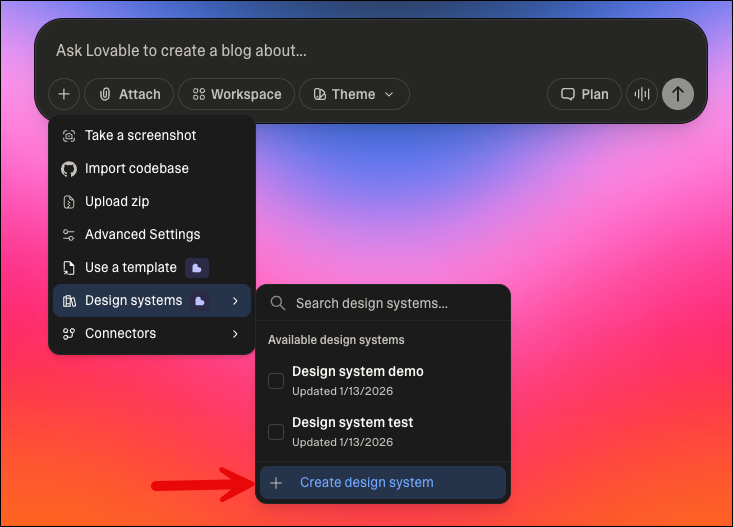 This creates a new design system project. Lovable assigns a name to your project, which you can change from the project settings.
Give your design system a meaningful name. This name is used when connecting the design system to projects later.
You can set up your design system in two main ways.
**Option A: Auto-fetch an existing React library**
If your design system is implemented as React components, share the repository or documentation URL in the chat.
* If public, Lovable fetches it automatically
* If private, Lovable fetches it using the secrets you configured
In addition to importing the components, you need to tell Lovable **how to use those components** correctly. This guidance can come from:
* Existing documentation sites or repositories
* Imported PDFs, Markdown files, or screenshots
* MCP servers that expose design system documentation
* Direct instructions provided in the chat
When fetching an existing library, ignore the guided questions and proceed to enter the URL.
**Option B: Build your design system with structured instructions**
If your documentation is scattered or incomplete, guide Lovable explicitly to build your design system. This approach lets you:
* Import PDFs, Markdown files, screenshots, and other assets
* Define components, patterns, tokens, and styling guidelines
* Write installation and setup instructions
* Update everything dynamically across connected projects
**Suggested prompt structure**
```
[High-level goal]
[Install instructions]
[Other context for setting up the system, for example tech stack and constraints]
[Component library request]
[Links to documentation, sites, PDFs, MCPs for more context. Lovable can crawl websites so feel free to include wide context here.]
```
After the first run, Lovable will generate a working design system project, for example: [https://design-system-demo.lovable.app/](https://design-system-demo.lovable.app/)
## Connect a design system to projects
In each project's settings, you can see which design systems are connected or available to connect.
You can connect multiple design systems to a project. The order of connected design systems determines how the Agent prioritizes them during project generation. You can reorder connected design systems in project settings.
You can remove a connected design system at any time from project settings. Removed design systems no longer apply to future generations of that project.
### Connect a design system to new projects
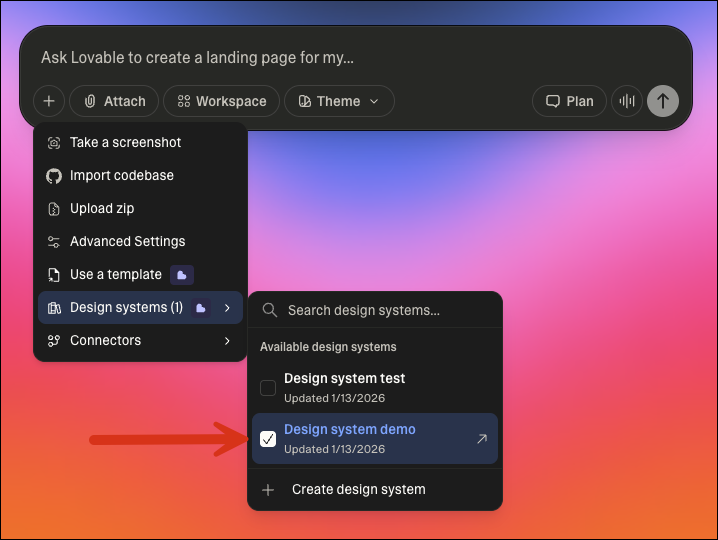
From the `+` dropdown of the [lovable.dev](https://lovable.dev) prompt box, go to **Design systems** and select a design system from the list of available ones, then enter your prompt. Lovable generates your new project using the selected design system.
This creates a new design system project. Lovable assigns a name to your project, which you can change from the project settings.
Give your design system a meaningful name. This name is used when connecting the design system to projects later.
You can set up your design system in two main ways.
**Option A: Auto-fetch an existing React library**
If your design system is implemented as React components, share the repository or documentation URL in the chat.
* If public, Lovable fetches it automatically
* If private, Lovable fetches it using the secrets you configured
In addition to importing the components, you need to tell Lovable **how to use those components** correctly. This guidance can come from:
* Existing documentation sites or repositories
* Imported PDFs, Markdown files, or screenshots
* MCP servers that expose design system documentation
* Direct instructions provided in the chat
When fetching an existing library, ignore the guided questions and proceed to enter the URL.
**Option B: Build your design system with structured instructions**
If your documentation is scattered or incomplete, guide Lovable explicitly to build your design system. This approach lets you:
* Import PDFs, Markdown files, screenshots, and other assets
* Define components, patterns, tokens, and styling guidelines
* Write installation and setup instructions
* Update everything dynamically across connected projects
**Suggested prompt structure**
```
[High-level goal]
[Install instructions]
[Other context for setting up the system, for example tech stack and constraints]
[Component library request]
[Links to documentation, sites, PDFs, MCPs for more context. Lovable can crawl websites so feel free to include wide context here.]
```
After the first run, Lovable will generate a working design system project, for example: [https://design-system-demo.lovable.app/](https://design-system-demo.lovable.app/)
## Connect a design system to projects
In each project's settings, you can see which design systems are connected or available to connect.
You can connect multiple design systems to a project. The order of connected design systems determines how the Agent prioritizes them during project generation. You can reorder connected design systems in project settings.
You can remove a connected design system at any time from project settings. Removed design systems no longer apply to future generations of that project.
### Connect a design system to new projects
From the `+` dropdown of the [lovable.dev](https://lovable.dev) prompt box, go to **Design systems** and select a design system from the list of available ones, then enter your prompt. Lovable generates your new project using the selected design system.
 ### Connect a design system to existing projects
To connect a design system to an existing project, follow the steps below:
1. Go to **Project settings → Design systems.**
2. Under **Available**, select a design system and click **Add**.
3. Click **Save.**
## Refine your design system
Design systems are meant to evolve. After the initial setup, iterate on the contents of the `.lovable` folder.
1. **Check the structure**\
Open the `.lovable` folder to see how Lovable interpreted your design system. These files are what gets applied to all connected projects.
2. **Fix inconsistencies**\
If components do not render correctly, ask Lovable to fix them and update the `.lovable` folder at the same time.
3. **Add detail**\
Request additional component documentation, token definitions, or usage patterns as needed.
## `.lovable` folder structure
Lovable usually generates this automatically, but understanding the structure helps with debugging. If you notice unexpected behavior, verify this structure is generally followed.
```
.lovable/
├── system.md (max ~500 lines)
│ ├── Installation instructions (10 lines)
│ │ - Private package setup
│ │ - Environment variables
│ │ - Sample .npmrc
│ ├── Asset links (fonts, icons, and similar)
│ ├── Directory guide (20 lines)
│ │ - What files exist
│ │ - When to reference them
│ └── General guidelines (remaining lines)
│ - Code patterns
│ - Design principles
│ - Decision trees
└── rules/
├── components/
│ ├── button.md
│ ├── input.md
│ └── modal.md
├── patterns/
│ ├── forms.md
│ └── navigation.md
└── styling/
├── colors.md
└── typography.md
```
## Fetch external design system documentation with MCP servers
MCP servers can be used to fetch design system documentation that is stored separately from your npm packages. See [Integrate with your tools using personal connectors (MCP servers)](/integrations/mcp-servers) for more information.
## Choose between templates and design systems
[Templates](/features/business/design-templates) are full project copies used as starting points.
Use **templates** when:
* Complex setup is required (multiple packages, custom configs)
* You need framework variants (React, Vue, Vite)
* There is heavy boilerplate that should not regenerate
Use **design systems** when:
* You want ongoing guidance and consistency
* Patterns and components evolve over time
* Updates should propagate automatically
**Recommended approach**:
* Use a **template** for initial project scaffolding
* Use a **design system** for ongoing UI and design rules
## Troubleshooting
If your design system uses React 19 but the project defaults to React 18, or vice versa, tell the agent explicitly. For example:
```text wrap theme={null}
My design system requires React 19. Please update the project dependencies accordingly.
```
If your design system does not use `shadcn/ui` or Tailwind CSS, ask the agent to remove them to avoid conflicts. For example:
```text wrap theme={null}
Please uninstall shadcn/ui and Tailwind CSS from this project. My design system uses [your styling solution] instead.
```
Ensure your design system project exports and documents components correctly in the `.lovable/rules/` folder. The agent relies on these rule files to understand how to use your components.
Verify that your design system’s CSS or theme tokens are imported in the project’s main entry file, such as `index.css` or `App.tsx`.
## FAQ
Yes, a design system is a regular Lovable project that is marked as a design system. It can be opened and edited like any other project, and other projects can connect to it to use its rules during generation.
Yes, a project can have multiple connected design systems. The order of connected design systems determines how the Agent prioritizes them during project generation.
Yes, any project can be marked as a design system from project settings. Once marked, it becomes available for other projects in the workspace to connect to.
To view connected design systems, go to **Project settings → Design systems**.
This tab shows all design systems currently linked to your project. From here, you can:
* Connect additional design systems from your workspace
* Reorder their priority
* Select whether the current project should be used as a design system for other projects in your workspace
When multiple design systems are connected, Lovable applies them in order. Design systems earlier in the list are prioritized over those later in the list.
You can reorder connected design systems in project settings to change their priority during generation.
Yes, a connected design system can be removed at any time from project settings. Once removed, it no longer applies to future generations of that project.
No, the `.lovable` folder is owned by the design system project and cannot be edited from connected projects. To change the design system, open and edit the design system project itself.
Not yet. Design systems currently do not support built-in versioning. Contact your account team if versioning is important for your workflow.
Lovable design systems support **React-based component libraries** out of the box.
If your design system is built with other frameworks such as Vue, Angular, or Svelte, reach out to your CSM or FDE to discuss compatibility options.
No, design systems do not replace templates. Templates and design systems serve different purposes and are often used together. Templates are best for initial project scaffolding, while design systems provide ongoing UI and design guidance across projects.
### Connect a design system to existing projects
To connect a design system to an existing project, follow the steps below:
1. Go to **Project settings → Design systems.**
2. Under **Available**, select a design system and click **Add**.
3. Click **Save.**
## Refine your design system
Design systems are meant to evolve. After the initial setup, iterate on the contents of the `.lovable` folder.
1. **Check the structure**\
Open the `.lovable` folder to see how Lovable interpreted your design system. These files are what gets applied to all connected projects.
2. **Fix inconsistencies**\
If components do not render correctly, ask Lovable to fix them and update the `.lovable` folder at the same time.
3. **Add detail**\
Request additional component documentation, token definitions, or usage patterns as needed.
## `.lovable` folder structure
Lovable usually generates this automatically, but understanding the structure helps with debugging. If you notice unexpected behavior, verify this structure is generally followed.
```
.lovable/
├── system.md (max ~500 lines)
│ ├── Installation instructions (10 lines)
│ │ - Private package setup
│ │ - Environment variables
│ │ - Sample .npmrc
│ ├── Asset links (fonts, icons, and similar)
│ ├── Directory guide (20 lines)
│ │ - What files exist
│ │ - When to reference them
│ └── General guidelines (remaining lines)
│ - Code patterns
│ - Design principles
│ - Decision trees
└── rules/
├── components/
│ ├── button.md
│ ├── input.md
│ └── modal.md
├── patterns/
│ ├── forms.md
│ └── navigation.md
└── styling/
├── colors.md
└── typography.md
```
## Fetch external design system documentation with MCP servers
MCP servers can be used to fetch design system documentation that is stored separately from your npm packages. See [Integrate with your tools using personal connectors (MCP servers)](/integrations/mcp-servers) for more information.
## Choose between templates and design systems
[Templates](/features/business/design-templates) are full project copies used as starting points.
Use **templates** when:
* Complex setup is required (multiple packages, custom configs)
* You need framework variants (React, Vue, Vite)
* There is heavy boilerplate that should not regenerate
Use **design systems** when:
* You want ongoing guidance and consistency
* Patterns and components evolve over time
* Updates should propagate automatically
**Recommended approach**:
* Use a **template** for initial project scaffolding
* Use a **design system** for ongoing UI and design rules
## Troubleshooting
If your design system uses React 19 but the project defaults to React 18, or vice versa, tell the agent explicitly. For example:
```text wrap theme={null}
My design system requires React 19. Please update the project dependencies accordingly.
```
If your design system does not use `shadcn/ui` or Tailwind CSS, ask the agent to remove them to avoid conflicts. For example:
```text wrap theme={null}
Please uninstall shadcn/ui and Tailwind CSS from this project. My design system uses [your styling solution] instead.
```
Ensure your design system project exports and documents components correctly in the `.lovable/rules/` folder. The agent relies on these rule files to understand how to use your components.
Verify that your design system’s CSS or theme tokens are imported in the project’s main entry file, such as `index.css` or `App.tsx`.
## FAQ
Yes, a design system is a regular Lovable project that is marked as a design system. It can be opened and edited like any other project, and other projects can connect to it to use its rules during generation.
Yes, a project can have multiple connected design systems. The order of connected design systems determines how the Agent prioritizes them during project generation.
Yes, any project can be marked as a design system from project settings. Once marked, it becomes available for other projects in the workspace to connect to.
To view connected design systems, go to **Project settings → Design systems**.
This tab shows all design systems currently linked to your project. From here, you can:
* Connect additional design systems from your workspace
* Reorder their priority
* Select whether the current project should be used as a design system for other projects in your workspace
When multiple design systems are connected, Lovable applies them in order. Design systems earlier in the list are prioritized over those later in the list.
You can reorder connected design systems in project settings to change their priority during generation.
Yes, a connected design system can be removed at any time from project settings. Once removed, it no longer applies to future generations of that project.
No, the `.lovable` folder is owned by the design system project and cannot be edited from connected projects. To change the design system, open and edit the design system project itself.
Not yet. Design systems currently do not support built-in versioning. Contact your account team if versioning is important for your workflow.
Lovable design systems support **React-based component libraries** out of the box.
If your design system is built with other frameworks such as Vue, Angular, or Svelte, reach out to your CSM or FDE to discuss compatibility options.
No, design systems do not replace templates. Templates and design systems serve different purposes and are often used together. Templates are best for initial project scaffolding, while design systems provide ongoing UI and design guidance across projects.