> ## Documentation Index
> Fetch the complete documentation index at: https://docs.lovable.dev/llms.txt
> Use this file to discover all available pages before exploring further.
# Explore changes with drafts
> Create drafts to try design, layout, and copy changes in a separate copy of your project, compare ideas, and keep the changes you like.
Drafts is in beta and rolling out gradually, so it may not be available in your workspace yet. This first release supports frontend changes, such as layout, styling, and copy. Changes to your database structure aren't supported in drafts yet.
Drafts let you make changes in a copy of your project instead of the main version itself. Each draft has its own chat, preview, and edits. When you’re ready, accept the draft to add its edits to your project, or delete it to discard them.
Nothing in a draft changes your project until you accept it. Accepting a draft does not change your published app. Your published app changes only when you publish.
Drafts are available on all plans. You need edit access to create, update, accept, or delete a draft.
## When to use a draft
Drafts work best for changes to how your app looks and reads, such as landing pages, marketing sites, and other frontend changes. For example:
* **Test a redesign.** Try new colors, fonts, or a different layout in a draft, and compare it with your current design before you commit to it.
* **Find the words that work.** Write different headlines, product descriptions, or calls to action in separate drafts, and keep the version that reads best.
* **Try new visuals and motion.** See how different photos, illustrations, or video change the feel of a page, or test scroll animations, a carousel, or a sticky navigation bar.
* **Prepare changes for later.** Build a sale banner or a seasonal page in a draft today, and accept it when you want to add it to your project.
* **Hand changes to someone else.** Let a teammate or client work in a draft, then review the changes and accept them when they’re ready.
Drafts are optional, and you can keep building exactly as you do today. Make quick changes like typo fixes directly in your project. For now, turning on the built-in backend (Cloud) and changing your database structure or login setup all need to happen in the main version of your project.
## How drafts work
You create a draft from your project’s main version, make changes in the draft, then accept it to keep those changes or delete it to discard them.
You’ll see six terms as you work with drafts: **Main**, **Draft**, **Update**, **Accept**, **Delete**, and **Publish**.
The table below explains each one using the same example: a bakery website where you want to try a new homepage design without changing the homepage you already have.
| Term | Description | Example |
| :---------- | :----------------------------------------------------------------------------------------------------------------------------------------------------------------------------------------------------------------- | :----------------------------------------------------------------------------------------------------------------------------------------------------------------- |
| **Main** | The main version of your project, where everyone works unless they're in a draft. It can include changes you haven’t published yet, and it’s the only version you can publish. | The current version of the bakery site, which opens when you enter the project. |
| **Draft** | A copy of your project where you can make changes separately. A draft has its own chat, preview, and edits, and none of those edits reach your project until you accept the draft. | You create a draft and redesign the homepage's hero section in the draft. The main version still shows the original hero. |
| **Update** | Brings newer changes from your project into a draft when you want the draft to include them. Updating is optional. If you accept without updating first, Lovable brings in the newer changes as part of accepting. | While your draft is open, a teammate fixes a typo in the project. Updating the draft brings in the typo fix, so the draft includes both the fix and your new hero. |
| **Accept** | Adds a draft's edits to your project. After you accept it, the draft is finished and can't be edited again. | You like the new hero, so you accept the draft. The main version of your project now includes the redesigned homepage. |
| **Delete** | Removes a draft and all of its edits. Your project stays unchanged. | You try another draft with a different color scheme, but you don't like it. You delete it, and the main version of your bakery site stays as it was. |
| **Publish** | Makes the current version of your project live for visitors. Draft edits reach your published app only after you accept the draft and publish the project. | After accepting the new hero, you publish the project. Visitors now see the redesigned homepage. |
If you use Git, drafts map to familiar concepts:
* A **draft** is a branch from your project’s history, with its own chat.
* **Update** rebases the draft onto the latest version of your project. If changes overlap, Lovable resolves the conflicts by reworking the draft’s edits.
* **Accept** is a fast-forward merge. Your project’s history stays linear, and the draft’s edits are added as a named group.
* **Delete** discards the branch.
You don’t need to know any of this to use drafts, and these Git terms don’t appear in the product.
## Create your first draft
Follow these steps to create a draft, make changes, compare it with your project, and decide whether to keep it.
On a phone, open the **⋮** menu next to the chat input and select **Drafts** to open the draft switcher. You can view drafts, switch between them, and create new ones on your phone. To rename, update, accept, or delete a draft, open your project on a computer.
In the editor, click **Main** next to your project's name at the top. This opens the draft switcher, where you can find the drafts you’ve created.
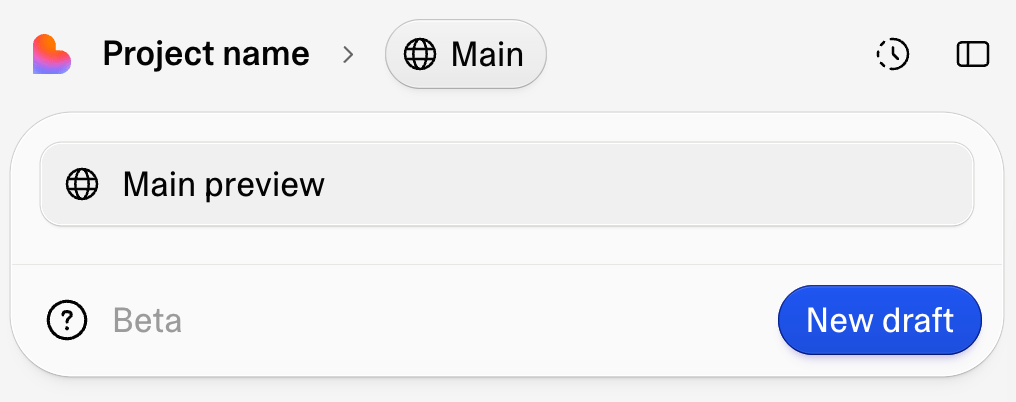 Click **New draft**. The new draft opens right away as a copy of the main version of your project. It starts with the name **Draft 1**, and Lovable renames it based on your first prompt. To choose your own name, hover over the draft in the switcher, open its **⋮** menu, and select **Rename**.
Chat with Lovable like you always do. Every edit stays in the draft, and the preview shows the draft's version of your app.
Use the draft switcher to move between the main version of your project and your drafts.
The pill at the top shows which version you’re viewing (**Main** or the name of the draft you're in), and the chat and preview change to match it. Switch between versions to compare your drafts with the main version of your project.
You can create as many drafts as you like and use each one to try a different idea.
When you want to keep a draft’s changes, select **Accept**. You'll find it in several places while you're in a draft: in the top bar where **Publish** usually is, at the bottom of the draft switcher, and in the draft's **⋮** menu.
If your main project has newer edits that the draft doesn’t have yet, the button in the top bar, draft switcher, and chat shows **Update** instead. You can still select **Accept** from the draft’s **⋮** menu. Lovable updates the draft first, then accepts it.
Before accepting, Lovable shows you the draft’s edits. Confirming adds them to your project’s unpublished changes and returns you to the main version of your project. The accepted draft moves to your project’s history.
Accepting does not publish the changes. [Publish your project](/features/publish) when you want them to go live.
If you don't want to keep the draft, [delete it](#delete-a-draft) instead.
When you have multiple drafts, the switcher shows the status of each one:
Click **New draft**. The new draft opens right away as a copy of the main version of your project. It starts with the name **Draft 1**, and Lovable renames it based on your first prompt. To choose your own name, hover over the draft in the switcher, open its **⋮** menu, and select **Rename**.
Chat with Lovable like you always do. Every edit stays in the draft, and the preview shows the draft's version of your app.
Use the draft switcher to move between the main version of your project and your drafts.
The pill at the top shows which version you’re viewing (**Main** or the name of the draft you're in), and the chat and preview change to match it. Switch between versions to compare your drafts with the main version of your project.
You can create as many drafts as you like and use each one to try a different idea.
When you want to keep a draft’s changes, select **Accept**. You'll find it in several places while you're in a draft: in the top bar where **Publish** usually is, at the bottom of the draft switcher, and in the draft's **⋮** menu.
If your main project has newer edits that the draft doesn’t have yet, the button in the top bar, draft switcher, and chat shows **Update** instead. You can still select **Accept** from the draft’s **⋮** menu. Lovable updates the draft first, then accepts it.
Before accepting, Lovable shows you the draft’s edits. Confirming adds them to your project’s unpublished changes and returns you to the main version of your project. The accepted draft moves to your project’s history.
Accepting does not publish the changes. [Publish your project](/features/publish) when you want them to go live.
If you don't want to keep the draft, [delete it](#delete-a-draft) instead.
When you have multiple drafts, the switcher shows the status of each one:
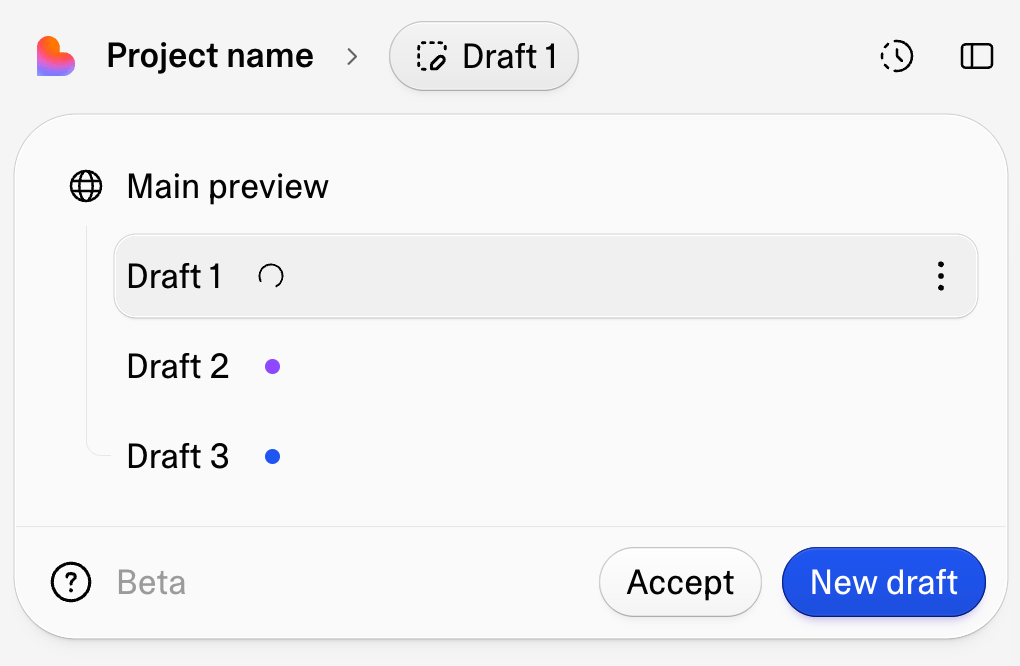 Here, Lovable is still working in **Draft 1**, shown by the spinner. **Draft 2** has newer edits from your project available to bring in, shown by the purple dot. **Draft 3** has edits you haven’t viewed yet, shown by the blue dot.
A dot can also appear when Lovable asks a question and is waiting for your answer. If a draft has no indicator, it doesn’t need your attention.
## Update a draft with newer project changes
A draft starts as a copy of your project. After you create it, you or a teammate might make newer changes to the project. Those changes don’t appear in the draft automatically.
When newer changes are available, Lovable shows a **New edits available** message above the draft’s chat and a purple **Updates available** indicator in the draft switcher.
Select **Update** to bring the newer project changes into the draft. You can update from the message above the chat, from the main button where **Accept** usually appears, or from the draft’s **⋮** menu.
If the newer project changes overlap with edits in the draft, Lovable adjusts the draft’s edits to work with the updated version. The update can take a few minutes, and Lovable may add a follow-up message to the draft’s chat.
You don't need to update a draft before accepting it. If your project has newer changes, Lovable updates the draft first and then accepts it. To do both steps yourself, select **Accept draft after updating** in the update dialog.
## Delete a draft
To delete a draft, open its **⋮** menu, select **Delete**, and confirm. Deleting removes the draft and all of its edits. Your project stays unchanged, and the deleted draft can’t be restored.
## Use drafts with your team
Everyone with edit access to the project sees the same drafts. Each draft shows who’s currently working in it. If you open a draft that someone else is using, Lovable suggests creating your own draft so you can work separately.
When someone accepts a draft, its changes are added to the project for everyone. Any other open drafts then show **New edits available** until they’re updated.
If several drafts are accepted around the same time, Lovable processes them one at a time. When more than one draft is waiting, an **Accepting drafts** card appears above the project chat and shows the order. You can remove a waiting draft or drag drafts to change the order.
## What happens to your app’s data
A draft keeps your changes to the app separate, but the app still uses your project’s real data. If you add, edit, or delete information while testing in a draft, those changes are real, just as they are when you test your project directly.
Lovable doesn’t support changes to your database structure in a draft, and it can’t turn on the built-in backend (Cloud) from one either. If you ask for either, Lovable directs you back to the main version of your project. It also blocks changes that would break the app for everyone and explains why in the draft’s chat.
For now, use drafts for changes to how your app looks and reads. Turn on Cloud, and make changes to your database structure or login setup, in the main version of your project.
## Current limitations
Keep these in mind while drafts are in beta.
* Drafts support frontend changes, such as layout, styling, and copy. For now, turn on the built-in backend (Cloud) and make changes to your database structure or login setup in the main version of your project.
* Drafts don’t support Git sync yet. Edits you accept still sync to your connected repository like any other project change.
## Troubleshooting
If drafts aren't working as expected, these are the most common causes.
Hover over the button to see why it’s unavailable. Common reasons include:
* The draft has no edits yet.
* Lovable is still working in the draft.
* An update, accept, or another operation is already in progress.
Wait for the current work to finish, then try again.
The draft couldn't bring in your project's newer edits, usually because the project was busy at that moment.
Select **Update** to try again. If it fails again, wait until Lovable finishes any work in the main version of your project, then retry.
You're viewing a draft that was already accepted, usually after opening it from your project's history. You can still read its chat and review its edits, but you can’t continue building in it.
Select **New draft** to continue from the current version of your project.
Drafts with no edits are removed automatically after 24 hours. Because this draft never contained any edits, no work was removed. Create a new draft to continue.
Each draft preview has its own web address, so your sign-in doesn’t carry over automatically. If your app has user accounts, sign in again inside the draft preview.
The draft keeps you signed in while you build in it, and your account and its data are unaffected.
## FAQ
Common questions about working with drafts.
Drafts is in beta and rolling out gradually, so it may not be available in your workspace yet. There's nothing you need to enable. When drafts are available, you'll see the **Main** pill next to your project's name in the editor.
No. A draft's edits stay in the draft until you accept it. Accepted edits are added to your project's unpublished changes and reach your published app only when you publish.
You can reopen an accepted draft from your project's history to read its chat and review its edits, but you can't continue building in it.
To continue the idea, create a new draft from the latest version of your project. To undo everything the accepted draft added, restore an earlier version from [version history](/features/projects/history). You can't revert individual edits from an accepted draft one by one.
No. You can create as many drafts as you need.
Anyone with edit access to the project can create, build in, update, accept, and delete drafts. People with view-only access can switch between drafts and view their previews, but draft actions are disabled for them. Drafts don't appear in preview links.
No. Building in a draft uses credits the same way as building directly in your project. Open drafts don't use credits on their own.
Yes. A draft's preview uses your project's real data, so any data you add, edit, or delete while testing in a draft is changed for real. For now, make changes to your database structure in the main version of your project.
Yes, but Git sync doesn't support drafts directly yet. You can still work in drafts, and edits you accept sync to your default branch like any other project change.
A draft with no edits is removed automatically after 24 hours. If you accepted the draft, you'll find it in your project's history.
## Related topics
- [Connect your app to Databricks](/integrations/databricks.md)
- [Subagents](/features/subagents.md)
- [Design guidance](/features/design-guidance.md)
- [Implement changes in Build mode](/features/agent-mode.md)
- [Lovable Cloud](/features/cloud.md)
Here, Lovable is still working in **Draft 1**, shown by the spinner. **Draft 2** has newer edits from your project available to bring in, shown by the purple dot. **Draft 3** has edits you haven’t viewed yet, shown by the blue dot.
A dot can also appear when Lovable asks a question and is waiting for your answer. If a draft has no indicator, it doesn’t need your attention.
## Update a draft with newer project changes
A draft starts as a copy of your project. After you create it, you or a teammate might make newer changes to the project. Those changes don’t appear in the draft automatically.
When newer changes are available, Lovable shows a **New edits available** message above the draft’s chat and a purple **Updates available** indicator in the draft switcher.
Select **Update** to bring the newer project changes into the draft. You can update from the message above the chat, from the main button where **Accept** usually appears, or from the draft’s **⋮** menu.
If the newer project changes overlap with edits in the draft, Lovable adjusts the draft’s edits to work with the updated version. The update can take a few minutes, and Lovable may add a follow-up message to the draft’s chat.
You don't need to update a draft before accepting it. If your project has newer changes, Lovable updates the draft first and then accepts it. To do both steps yourself, select **Accept draft after updating** in the update dialog.
## Delete a draft
To delete a draft, open its **⋮** menu, select **Delete**, and confirm. Deleting removes the draft and all of its edits. Your project stays unchanged, and the deleted draft can’t be restored.
## Use drafts with your team
Everyone with edit access to the project sees the same drafts. Each draft shows who’s currently working in it. If you open a draft that someone else is using, Lovable suggests creating your own draft so you can work separately.
When someone accepts a draft, its changes are added to the project for everyone. Any other open drafts then show **New edits available** until they’re updated.
If several drafts are accepted around the same time, Lovable processes them one at a time. When more than one draft is waiting, an **Accepting drafts** card appears above the project chat and shows the order. You can remove a waiting draft or drag drafts to change the order.
## What happens to your app’s data
A draft keeps your changes to the app separate, but the app still uses your project’s real data. If you add, edit, or delete information while testing in a draft, those changes are real, just as they are when you test your project directly.
Lovable doesn’t support changes to your database structure in a draft, and it can’t turn on the built-in backend (Cloud) from one either. If you ask for either, Lovable directs you back to the main version of your project. It also blocks changes that would break the app for everyone and explains why in the draft’s chat.
For now, use drafts for changes to how your app looks and reads. Turn on Cloud, and make changes to your database structure or login setup, in the main version of your project.
## Current limitations
Keep these in mind while drafts are in beta.
* Drafts support frontend changes, such as layout, styling, and copy. For now, turn on the built-in backend (Cloud) and make changes to your database structure or login setup in the main version of your project.
* Drafts don’t support Git sync yet. Edits you accept still sync to your connected repository like any other project change.
## Troubleshooting
If drafts aren't working as expected, these are the most common causes.
Hover over the button to see why it’s unavailable. Common reasons include:
* The draft has no edits yet.
* Lovable is still working in the draft.
* An update, accept, or another operation is already in progress.
Wait for the current work to finish, then try again.
The draft couldn't bring in your project's newer edits, usually because the project was busy at that moment.
Select **Update** to try again. If it fails again, wait until Lovable finishes any work in the main version of your project, then retry.
You're viewing a draft that was already accepted, usually after opening it from your project's history. You can still read its chat and review its edits, but you can’t continue building in it.
Select **New draft** to continue from the current version of your project.
Drafts with no edits are removed automatically after 24 hours. Because this draft never contained any edits, no work was removed. Create a new draft to continue.
Each draft preview has its own web address, so your sign-in doesn’t carry over automatically. If your app has user accounts, sign in again inside the draft preview.
The draft keeps you signed in while you build in it, and your account and its data are unaffected.
## FAQ
Common questions about working with drafts.
Drafts is in beta and rolling out gradually, so it may not be available in your workspace yet. There's nothing you need to enable. When drafts are available, you'll see the **Main** pill next to your project's name in the editor.
No. A draft's edits stay in the draft until you accept it. Accepted edits are added to your project's unpublished changes and reach your published app only when you publish.
You can reopen an accepted draft from your project's history to read its chat and review its edits, but you can't continue building in it.
To continue the idea, create a new draft from the latest version of your project. To undo everything the accepted draft added, restore an earlier version from [version history](/features/projects/history). You can't revert individual edits from an accepted draft one by one.
No. You can create as many drafts as you need.
Anyone with edit access to the project can create, build in, update, accept, and delete drafts. People with view-only access can switch between drafts and view their previews, but draft actions are disabled for them. Drafts don't appear in preview links.
No. Building in a draft uses credits the same way as building directly in your project. Open drafts don't use credits on their own.
Yes. A draft's preview uses your project's real data, so any data you add, edit, or delete while testing in a draft is changed for real. For now, make changes to your database structure in the main version of your project.
Yes, but Git sync doesn't support drafts directly yet. You can still work in drafts, and edits you accept sync to your default branch like any other project change.
A draft with no edits is removed automatically after 24 hours. If you accepted the draft, you'll find it in your project's history.
## Related topics
- [Connect your app to Databricks](/integrations/databricks.md)
- [Subagents](/features/subagents.md)
- [Design guidance](/features/design-guidance.md)
- [Implement changes in Build mode](/features/agent-mode.md)
- [Lovable Cloud](/features/cloud.md)