> ## Documentation Index
> Fetch the complete documentation index at: https://docs.lovable.dev/llms.txt
> Use this file to discover all available pages before exploring further.
# Dashboard overview
> Learn how to navigate the Lovable dashboard, start new projects, and access your workspace settings.
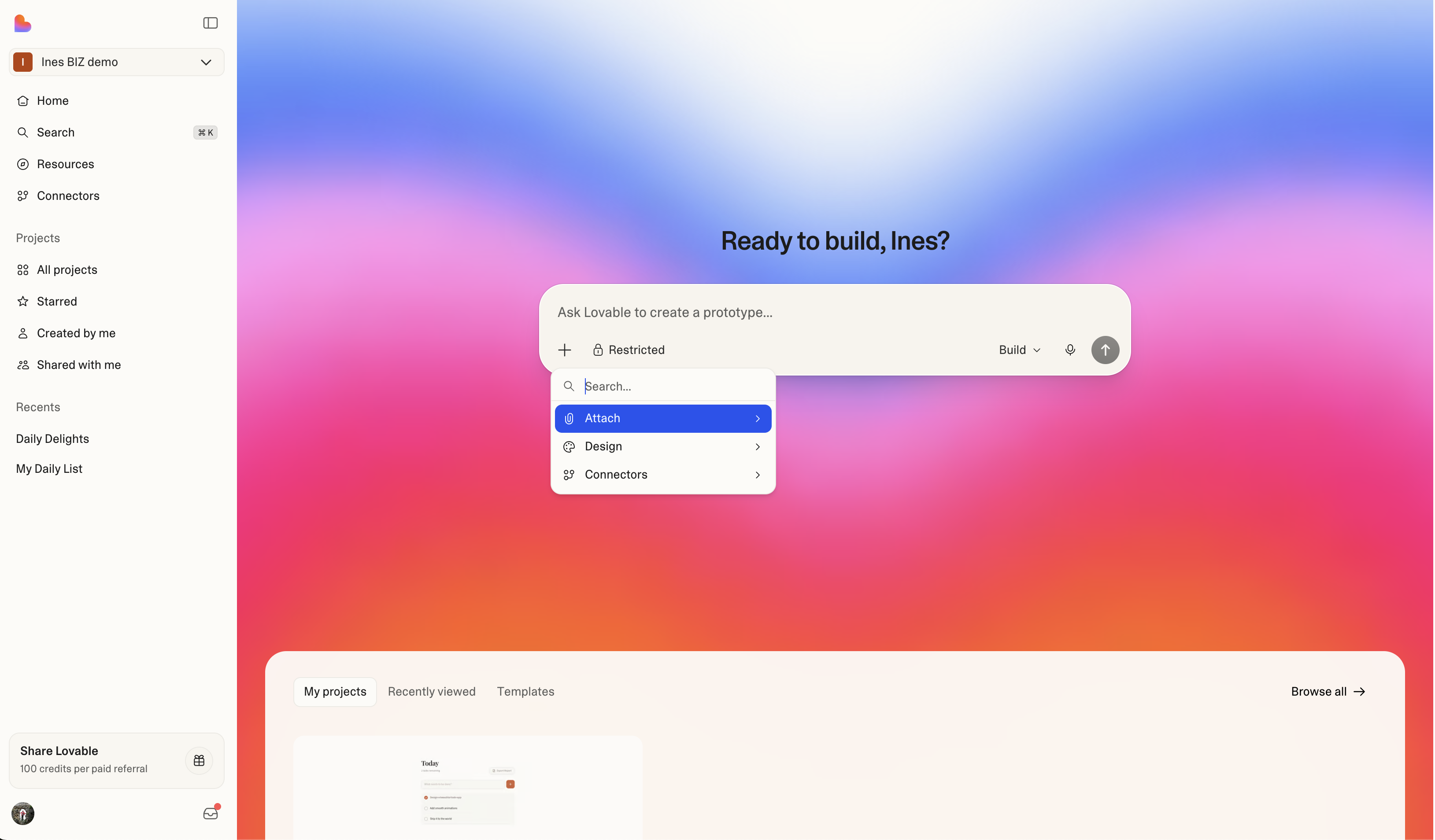
The dashboard is your home base in Lovable. It's where you create new projects, access existing ones, and navigate to your workspace settings.
 ## Starting a new project
The prompt input box is front and center on the dashboard. Type a description of what you want to build and click send to create a new project. See [Quick start](/introduction/getting-started) for more information.
### The prompt input
Type your idea into the text field or click the microphone button to use voice input and dictate your prompt.
Lovable uses your description to generate a working app. You can be as brief or detailed as you like, for example, `a todo app with dark mode` or a multi-paragraph specification.
See [Prompting best practices](/prompting/prompting-one) for more information.
### The `+` menu
Click the `+` button to the left of the input to access additional options:
* **Attach**: Upload images or files to include as context for your project or capture and attach a screenshot for Lovable to reference
* **Design:** Choose from the [template](/features/business/design-templates) library to start with a pre-built foundation (Business and Enterprise plans) or select a [design system](/features/design-systems) to apply consistent styling (Enterprise only)
* **Connectors:** Connect [Lovable Cloud](/integrations/cloud) or [Supabase](/integrations/supabase) for database and backend services, connect [chat connectors](/integrations/mcp-servers) (MCP servers) for context while you build, and manage [connectors](/integrations/introduction) for deployed apps
### Project access
Project access defaults to **workspace** on all plans and can be managed from the **Share** button in the top bar of any project.
Additionally, on Business and Enterprise plans, you can adjust project access even before creating the project.
See [Project access](/features/project-visibility) and [Share a project](/features/share-project) for more information.
### Build mode vs Plan mode
Use the mode toggle next to the send button to switch between:
* [Build](/features/agent-mode): Lovable generates and modifies code in your project (default)
* [**Plan**](/features/plan-mode): Discuss and plan your project without making code changes
## Sidebar and navigation
The sidebar on the left gives you access to everything in your workspace.
Click the collapse/expand button at the top of the sidebar, or press `Cmd+B` (Mac) / `Ctrl+B` (Windows/Linux).
Navigation items show tooltips on hover when the sidebar is collapsed.
### Workspace selector
At the top of the sidebar, click your workspace name to switch between workspaces you belong to. Each workspace has its own projects, members, and billing. Learn more about workspaces in [Lovable workspace](/features/workspace).
### Navigation
* **Home**: Return to the dashboard home page
* **Search**: Open the [command palette](/introduction/project-search-and-find#command-palette) to find projects, folders, and settings. Keyboard shortcut: `Cmd+K` (Mac) or `Ctrl+K` (Windows/Linux).
* **Resources**: Browse templates to remix and build your next project
* **Connectors**: Browse and manage available [app and chat connectors](/integrations/introduction)
### Projects section
Expandable groups for navigating your projects:
* **All projects**: Opens the full projects list. Expand the chevron in the sidebar to see your [folder tree](/introduction/project-folders) and navigate directly to folders.
* **Starred**: Projects you've starred for quick access
* **Created by me**: Projects you own
* **Shared with me**: Projects and [folders](/introduction/project-folders) others have shared with you
See [Find and search projects](/introduction/project-search-and-find) for more information.
### Recents section
Below the projects section, the sidebar shows your recently accessed projects, ordered by last access time.
### Share Lovable
The referral card at the bottom of the sidebar lets you share Lovable with others. You earn **100 credits for each paid referral** who signs up through your link. Not available on Enterprise plans.
### Upgrade plan
If you're on a Free or lower-tier plan, an upgrade card appears in the sidebar. Click it to view available plans and upgrade your workspace for more credits and features. See [Subscription plans](/introduction/subscription-plans) for more information.
## User menu
Click your avatar at the bottom-left of the sidebar to open the user menu. From here, you can access the following:
* **Profile**: View your public profile page
* **Settings**: Opens your account settings. Shortcut: `Cmd+.` (Mac) / `Ctrl+.` (Windows/Linux)
* **Appearance**: Customize your Lovable dashboard look
* **Background gradient**: Choose between visual themes for the dashboard background
* **Color theme**: Switch between light, dark, or system (follows your OS preference)
You can also change the theme quickly via `Cmd+K` → type "theme".
* **Support**: Access various help resources
* **Documentation**: Links to docs and resources
* **Community**: Visit the Lovable community
* **Homepage**: Go to [lovable.dev](http://lovable.dev)
* **Sign out**: Log out of your account
## Inbox and notifications
Click the inbox icon next to your avatar to open the notification panel. A count badge shows unread items, and a red dot indicates new notifications.
### Inbox tab
The Inbox tab shows pending actions that need your attention:
* **Workspace invitations**: Accept or decline invitations to join a workspace
* **Project invitations**: Accept or decline invitations to collaborate on a project
* **Project access requests**: Approve or deny requests from others wanting access to your projects
* **Workspace access requests**: Approve or deny requests from others wanting to join your workspace
* **General notifications**: System notifications
### What's new tab
The **What's new** tab shows feature announcements and product updates, including:
* New integration launches and connector availability
* Product feature releases
* New Lovable changelog announcements
## Keyboard shortcuts
| Shortcut | Action |
| ------------------ | ----------------------------- |
| `Cmd+K` / `Ctrl+K` | Open search (command palette) |
| `Cmd+B` / `Ctrl+B` | Toggle sidebar |
| `Cmd+.` / `Ctrl+.` | Open your account settings |
## Starting a new project
The prompt input box is front and center on the dashboard. Type a description of what you want to build and click send to create a new project. See [Quick start](/introduction/getting-started) for more information.
### The prompt input
Type your idea into the text field or click the microphone button to use voice input and dictate your prompt.
Lovable uses your description to generate a working app. You can be as brief or detailed as you like, for example, `a todo app with dark mode` or a multi-paragraph specification.
See [Prompting best practices](/prompting/prompting-one) for more information.
### The `+` menu
Click the `+` button to the left of the input to access additional options:
* **Attach**: Upload images or files to include as context for your project or capture and attach a screenshot for Lovable to reference
* **Design:** Choose from the [template](/features/business/design-templates) library to start with a pre-built foundation (Business and Enterprise plans) or select a [design system](/features/design-systems) to apply consistent styling (Enterprise only)
* **Connectors:** Connect [Lovable Cloud](/integrations/cloud) or [Supabase](/integrations/supabase) for database and backend services, connect [chat connectors](/integrations/mcp-servers) (MCP servers) for context while you build, and manage [connectors](/integrations/introduction) for deployed apps
### Project access
Project access defaults to **workspace** on all plans and can be managed from the **Share** button in the top bar of any project.
Additionally, on Business and Enterprise plans, you can adjust project access even before creating the project.
See [Project access](/features/project-visibility) and [Share a project](/features/share-project) for more information.
### Build mode vs Plan mode
Use the mode toggle next to the send button to switch between:
* [Build](/features/agent-mode): Lovable generates and modifies code in your project (default)
* [**Plan**](/features/plan-mode): Discuss and plan your project without making code changes
## Sidebar and navigation
The sidebar on the left gives you access to everything in your workspace.
Click the collapse/expand button at the top of the sidebar, or press `Cmd+B` (Mac) / `Ctrl+B` (Windows/Linux).
Navigation items show tooltips on hover when the sidebar is collapsed.
### Workspace selector
At the top of the sidebar, click your workspace name to switch between workspaces you belong to. Each workspace has its own projects, members, and billing. Learn more about workspaces in [Lovable workspace](/features/workspace).
### Navigation
* **Home**: Return to the dashboard home page
* **Search**: Open the [command palette](/introduction/project-search-and-find#command-palette) to find projects, folders, and settings. Keyboard shortcut: `Cmd+K` (Mac) or `Ctrl+K` (Windows/Linux).
* **Resources**: Browse templates to remix and build your next project
* **Connectors**: Browse and manage available [app and chat connectors](/integrations/introduction)
### Projects section
Expandable groups for navigating your projects:
* **All projects**: Opens the full projects list. Expand the chevron in the sidebar to see your [folder tree](/introduction/project-folders) and navigate directly to folders.
* **Starred**: Projects you've starred for quick access
* **Created by me**: Projects you own
* **Shared with me**: Projects and [folders](/introduction/project-folders) others have shared with you
See [Find and search projects](/introduction/project-search-and-find) for more information.
### Recents section
Below the projects section, the sidebar shows your recently accessed projects, ordered by last access time.
### Share Lovable
The referral card at the bottom of the sidebar lets you share Lovable with others. You earn **100 credits for each paid referral** who signs up through your link. Not available on Enterprise plans.
### Upgrade plan
If you're on a Free or lower-tier plan, an upgrade card appears in the sidebar. Click it to view available plans and upgrade your workspace for more credits and features. See [Subscription plans](/introduction/subscription-plans) for more information.
## User menu
Click your avatar at the bottom-left of the sidebar to open the user menu. From here, you can access the following:
* **Profile**: View your public profile page
* **Settings**: Opens your account settings. Shortcut: `Cmd+.` (Mac) / `Ctrl+.` (Windows/Linux)
* **Appearance**: Customize your Lovable dashboard look
* **Background gradient**: Choose between visual themes for the dashboard background
* **Color theme**: Switch between light, dark, or system (follows your OS preference)
You can also change the theme quickly via `Cmd+K` → type "theme".
* **Support**: Access various help resources
* **Documentation**: Links to docs and resources
* **Community**: Visit the Lovable community
* **Homepage**: Go to [lovable.dev](http://lovable.dev)
* **Sign out**: Log out of your account
## Inbox and notifications
Click the inbox icon next to your avatar to open the notification panel. A count badge shows unread items, and a red dot indicates new notifications.
### Inbox tab
The Inbox tab shows pending actions that need your attention:
* **Workspace invitations**: Accept or decline invitations to join a workspace
* **Project invitations**: Accept or decline invitations to collaborate on a project
* **Project access requests**: Approve or deny requests from others wanting access to your projects
* **Workspace access requests**: Approve or deny requests from others wanting to join your workspace
* **General notifications**: System notifications
### What's new tab
The **What's new** tab shows feature announcements and product updates, including:
* New integration launches and connector availability
* Product feature releases
* New Lovable changelog announcements
## Keyboard shortcuts
| Shortcut | Action |
| ------------------ | ----------------------------- |
| `Cmd+K` / `Ctrl+K` | Open search (command palette) |
| `Cmd+B` / `Ctrl+B` | Toggle sidebar |
| `Cmd+.` / `Ctrl+.` | Open your account settings |