> ## Documentation Index
> Fetch the complete documentation index at: https://docs.lovable.dev/llms.txt
> Use this file to discover all available pages before exploring further.

# Quick start

> Create your first project, navigate the dashboard, add backend capabilities, and publish your app step by step

<head>
  <script type="application/ld+json">
    {`{"@context": "https://schema.org", "@type": "FAQPage", "mainEntity": [{"@type": "Question", "name": "Create your first project", "acceptedAnswer": {"@type": "Answer", "text": "To get started, head over to lovable.dev and create an account. Once registered, you'll be able to create your first project. Simply enter an initial prompt to kick things off, and Lovable will do the rest! This is the starting block for any project in Lovable, where you can bring your ideas to life instantly."}}, {"@type": "Question", "name": "Lovable dashboard", "acceptedAnswer": {"@type": "Answer", "text": "At Lovable, simplicity is key: - Here you kickstart your project with a single prompt. - Explore all projects, including the latest and featured ones. - Jumpstart with a template from our curated selection. - Personalize your experience by viewing and editing your profile. - Manage your account to check monthly credits and adjust settings. - Upgrade or downgrade your plan seamlessly."}}, {"@type": "Question", "name": "Project overview", "acceptedAnswer": {"@type": "Answer", "text": "At Lovable, every project follows a structured workflow: - Edit with ease using a chat-based interface. - Attach images for precision edits and inspiration. - Select and visually edit components for a seamless design experience. - Switch effortlessly between Agent mode and Plan mode. - Track changes with version history and revert to any previous version. - Navigate through pages of your project with ease. - Enable remixing or rename your project as needed. - Use Lovable Cloud (or integrate with Supabase) for backend capabilities. - Collaborate via GitHub to edit and manage your code. - Publish, deploy, and share your project with a preview link (remember to re-publish after changes). - Toggle between web and mobile view for responsive design. - Refresh the preview modal to see updates instantly. - Open your project directly using the preview link."}}, {"@type": "Question", "name": "Project settings", "acceptedAnswer": {"@type": "Answer", "text": "Every project’s settings empower you to: - View key project details like total edits and creation date. - Set up custom knowledge to tailor your project’s context. - Connect to a GitHub repository for seamless collaboration. - Adjust project visibility as needed. - Manage the badge display (available for paid plans only). - Rename your project anytime. - Delete your project (⚠️ Danger Zone)."}}, {"@type": "Question", "name": "Project quick access", "acceptedAnswer": {"@type": "Answer", "text": "You can always quickly access: - Dashboard for an overview of your projects. - Account settings to manage your profile and preferences. - Documentation and Support for guidance and assistance. - Log out securely from your Lovable account."}}, {"@type": "Question", "name": "Prompt", "acceptedAnswer": {"@type": "Answer", "text": "Lovable’s prompt-based system makes app creation simple. - Just describe what you want to build in the prompt box. - The more specific you are, the better the results. - Start with clear and detailed prompts. - You can refine and adjust your project as you go. Example: _\\"Create a dashboard with user login, monthly sales in a line chart, and customer demographics in a pie chart.\\"_"}}, {"@type": "Question", "name": "Remix an existing project", "acceptedAnswer": {"@type": "Answer", "text": "You can remix an existing public project or one of your own. Remixing allows you to reuse the current state of a project as a starting point and build upon it. It’s a great way to explore new ideas, make adjustments, or iterate with different changes while preserving the original version. You can only remix public projects from other users if the project is not connected to Supabase."}}, {"@type": "Question", "name": "Using Figma", "acceptedAnswer": {"@type": "Answer", "text": "If you have a design in Figma, take a screenshot of any part of it. You can paste the screenshot directly into Lovable or drag-and-drop the image file. Once you press Enter, Lovable will convert your design into functional code."}}, {"@type": "Question", "name": "Using a sketch", "acceptedAnswer": {"@type": "Answer", "text": "Use Excalidraw or any similar tool to sketch your UI. Take a screenshot of your drawing, then paste or drag-and-drop it into Lovable. The platform will transform your sketch into working code. More information here."}}, {"@type": "Question", "name": "Cloning a website or application", "acceptedAnswer": {"@type": "Answer", "text": "If you want to replicate an existing webpage: Take a screenshot using shortcuts like _Cmd+Shift+4_ on Mac or tools like the GoFullPage Chrome Extension. Paste or drag the screenshot into Lovable. Lovable will recreate the structure of the webpage in your project. More information here."}}, {"@type": "Question", "name": "Add custom knowledge to your project", "acceptedAnswer": {"@type": "Answer", "text": "The Custom knowledge in Lovable acts as your project's blueprint, organizing functionality, design, and goals in one place."}}, {"@type": "Question", "name": "Use Visual Edits", "acceptedAnswer": {"@type": "Answer", "text": "Visual Edits allows you to select elements on the page and either edit them instantly, such as updating text or colors, or use prompts to adjust functionality and layout. See Visual Edits for more information."}}, {"@type": "Question", "name": "Revert a change or edit a message and revert to use a different approach", "acceptedAnswer": {"@type": "Answer", "text": "Speed matters when building AI-driven apps, but so do stability and control. That’s why we’ve upgraded versioning to make tracking changes effortless. You can preview an older working version and then revert to that version if needed, or edit a past message and revert to explore a different approach. Nothing gets lost — all changes made after that point stay in the chat and can be reapplied anytime. Keep your work organized by bookmarking important edits, making it easy to find and revisit them later. The history panel now works like Google Docs, making tracking changes easier."}}, {"@type": "Question", "name": "Add images to prompt", "acceptedAnswer": {"@type": "Answer", "text": "Attach images directly to the chat to add context to your prompts. This makes it easier to illustrate ideas or concepts that are better shown than described."}}, {"@type": "Question", "name": "Connect to GitHub", "acceptedAnswer": {"@type": "Answer", "text": "Integrate your project with GitHub to iterate on your application seamlessly. You can make code changes in GitHub or your preferred IDE while keeping everything in sync with Lovable. See GitHub integration for more information."}}, {"@type": "Question", "name": "Connect a backend", "acceptedAnswer": {"@type": "Answer", "text": "If you need to add backend capabilities to your application, you can: - Connect to Lovable's built-in backend - Lovable Cloud - Use Lovable's native Supabase integration"}}, {"@type": "Question", "name": "Add payment capabilities to your application with Stripe", "acceptedAnswer": {"@type": "Answer", "text": "There are many ways to connect Stripe to Lovable, but the most straight-forward way is to utilize Stripe's built in payment links. See Stripe integration for more information."}}, {"@type": "Question", "name": "Add email capabilities with Resend", "acceptedAnswer": {"@type": "Answer", "text": "See Resend integration for more information."}}, {"@type": "Question", "name": "Set up SEO", "acceptedAnswer": {"@type": "Answer", "text": "Ensure the best results by following our Implement SEO and GEO best practices guide."}}, {"@type": "Question", "name": "Add a custom domain", "acceptedAnswer": {"@type": "Answer", "text": "You can add a custom domain using: - Entri (native to Lovable) - Netlify - Vercel - Namecheap See Custom domain for more information."}}, {"@type": "Question", "name": "Publish my project", "acceptedAnswer": {"@type": "Answer", "text": "When your project is ready, publish it to generate a shareable URL. This makes it easy to showcase your application or share it with collaborators and stakeholders. See Publish for more information."}}]}`}
  </script>
</head>

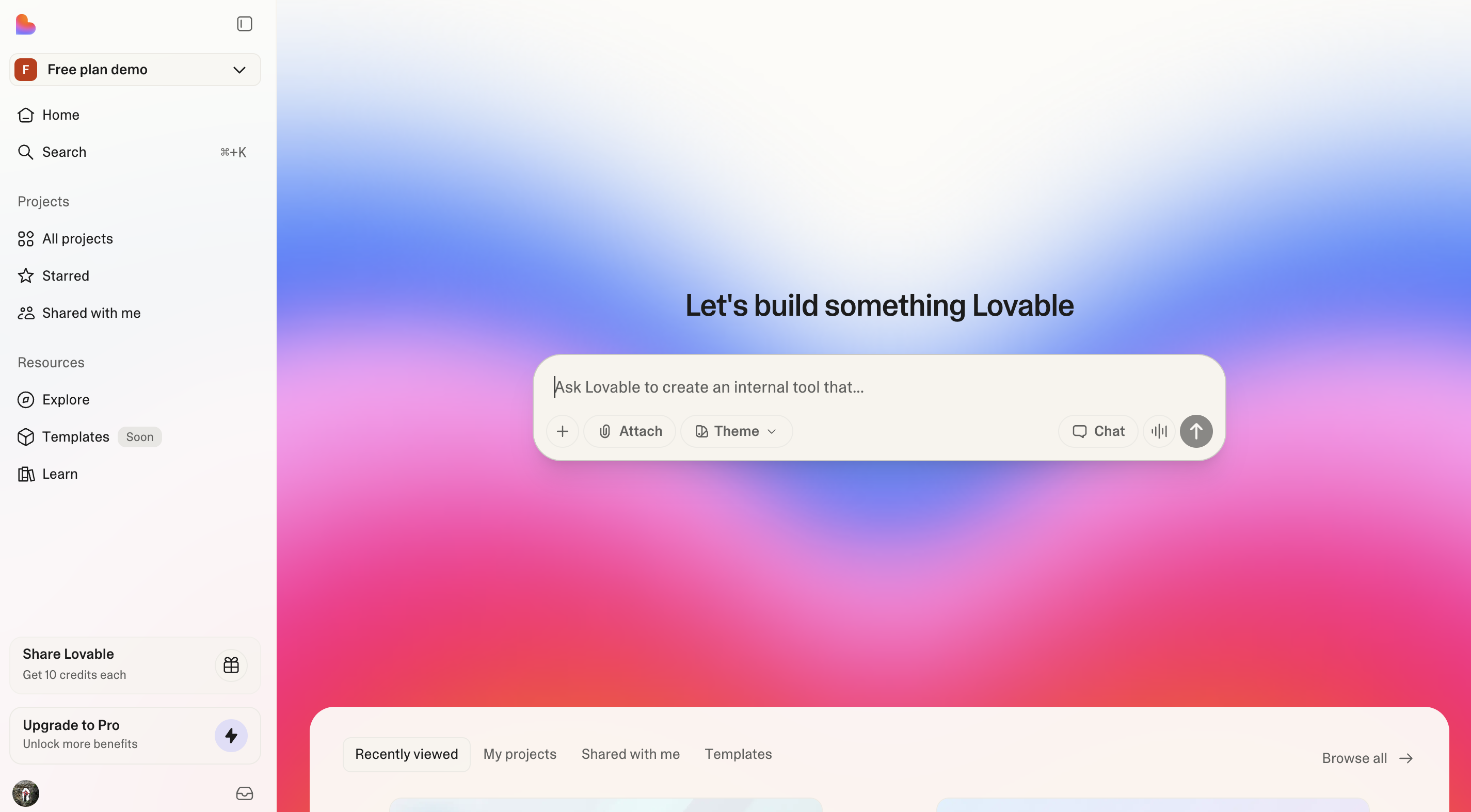
Welcome to this step-by-step guide on how to create a full-stack application using Lovable:

<Frame>
  <img src="https://mintcdn.com/lovable-f9060f1e/ybHXd0Cn2UWhku0A/images/welcome-lovable-dashboard.png?fit=max&auto=format&n=ybHXd0Cn2UWhku0A&q=85&s=7063addda22ec0066d45e5ece92559c4" alt="Welcome Lovable Dashboard" width="3292" height="1898" data-path="images/welcome-lovable-dashboard.png" />
</Frame>

## The Lovable platform overview

<AccordionGroup>
  <Accordion title="Create your first project">
    <Steps>
      <Step title="Step 1">
        To get started, head over to [lovable.dev](https://lovable.dev) and create an account. Once registered, you'll be able to create your first project.
      </Step>

      <Step title="Step 2">
        Simply enter an initial prompt to kick things off, and Lovable will do the rest! This is the **starting block** for any project in Lovable, where you can bring your ideas to life instantly.
      </Step>
    </Steps>
  </Accordion>

  <Accordion title="Lovable dashboard">
    At Lovable, simplicity is key:

    * [**Here**](https://lovable.dev/) **you kickstart your project** with a single prompt.
    * **Explore all projects**, including the latest and featured ones.
    * **Jumpstart with a template** from our curated selection.
    * **Personalize your experience** by viewing and editing your profile.
    * [**Manage your account**](https://lovable.dev/settings) to check monthly credits and adjust settings.
    * [**Upgrade or downgrade**](https://lovable.dev/settings/plans) **your plan** seamlessly.
  </Accordion>

  <Accordion title="Project overview">
    At Lovable, every project follows a structured workflow:

    * **Edit with ease** using a chat-based interface.
    * **Attach images** for precision edits and inspiration.
    * **Select and visually edit components** for a seamless design experience.
    * **Switch effortlessly** between Agent mode and Plan mode.
    * **Track changes** with version history and revert to any previous version.
    * **Navigate through pages** of your project with ease.
    * **Enable remixing** or rename your project as needed.
    * **Use Lovable Cloud** (or integrate with Supabase) for backend capabilities.
    * **Collaborate via GitHub** to edit and manage your code.
    * **Publish, deploy, and share** your project with a preview link (remember to re-publish after changes).
    * **Toggle between web and mobile view** for responsive design.
    * **Refresh the preview modal** to see updates instantly.
    * **Open your project directly** using the preview link.
  </Accordion>

  <Accordion title="Project settings">
    Every project’s settings empower you to:

    * **View key project details** like total edits and creation date.
    * **Set up custom knowledge** to tailor your project’s context.
    * **Connect to a GitHub repository** for seamless collaboration.
    * **Adjust project access** as needed.
    * **Manage the badge display** (available for paid plans only).
    * **Rename your project** anytime.
    * **Delete your project** (⚠️ Danger Zone).
  </Accordion>

  <Accordion title="Project quick access">
    You can always quickly access:

    * **Dashboard** for an overview of your projects.
    * **Account settings** to manage your profile and preferences.
    * **Documentation and Support** for guidance and assistance.
    * **Log out** securely from your Lovable account.
  </Accordion>
</AccordionGroup>

## Start your project

There are several ways to get started with Lovable, depending on your preferences and resources:

<AccordionGroup>
  <Accordion title="Prompt">
    Lovable’s prompt-based system makes app creation simple.

    * Just describe what you want to build in the prompt box.
    * The more specific you are, the better the results.
    * Start with clear and detailed prompts.
    * You can refine and adjust your project as you go.

    <Info>
      Example:

      *"Create a dashboard with user login, monthly sales in a line chart, and customer demographics in a pie chart."*
    </Info>
  </Accordion>

  <Accordion title="Remix an existing project">
    You can remix projects with public remixing enabled, one of your own projects, or projects you have access to. Remixing allows you to reuse the current state of a project as a starting point and build upon it. It’s a great way to explore new ideas, make adjustments, or iterate with different changes while preserving the original version.

    <Note>
      You can only remix projects from other users if the project is not connected to Supabase.
    </Note>
  </Accordion>

  <Accordion title="Using Figma">
    If you have a design in Figma, take a screenshot of any part of it. You can paste the screenshot directly into Lovable or drag-and-drop the image file. Once you press Enter, Lovable will convert your design into functional code.
  </Accordion>

  <Accordion title="Using a sketch">
    <Steps>
      <Step title="Step 1">
        Use [**Excalidraw**](https://excalidraw.com/) or any similar tool to sketch your UI.
      </Step>

      <Step title="Step 2">
        Take a screenshot of your drawing, then paste or drag-and-drop it into Lovable. The platform will transform your sketch into working code.
      </Step>
    </Steps>

    [More information here.](https://www.youtube.com/watch?v=c0zhLzcVJRI)
  </Accordion>

  <Accordion title="Cloning a website or application">
    If you want to replicate an existing webpage:

    <Steps>
      <Step title="Step 1">
        Take a screenshot using shortcuts like *Cmd+Shift+4* on Mac or tools like the [GoFullPage Chrome Extension](https://chromewebstore.google.com/detail/gofullpage-full-page-scre/fdpohaocaechififmbbbbbknoalclacl).
      </Step>

      <Step title="Step 2">
        Paste or drag the screenshot into Lovable. Lovable will recreate the structure of the webpage in your project.
      </Step>
    </Steps>

    [More information here.](https://www.youtube.com/watch?v=tYDqBMilHkM)
  </Accordion>
</AccordionGroup>

## Edit your project

<AccordionGroup>
  <Accordion title="Add custom knowledge to your project">
    The [Custom knowledge](/features/knowledge) in Lovable acts as your project's **blueprint**, organizing functionality, design, and goals in one place.
  </Accordion>

  <Accordion title="Use Visual Edits">
    Visual Edits allows you to select elements on the page and either edit them instantly, such as updating text or colors, or use prompts to adjust functionality and layout.

    See [Visual Edits](https://docs.lovable.dev/features/visual-edit) for more information.
  </Accordion>

  <Accordion title="Revert a change or edit a message and revert to use a different approach">
    Speed matters when building AI-driven apps, but so do stability and control. That’s why we’ve upgraded versioning to make tracking changes effortless.

    <Steps>
      <Step title="Revert to past versions instantly or go with a different approach">
        You can preview an older working version and then revert to that version if needed, or edit a past message and revert to explore a different approach. Nothing gets lost — all changes made after that point stay in the chat and can be reapplied anytime.
      </Step>

      <Step title="Bookmark key edits">
        Keep your work organized by bookmarking important edits, making it easy to find and revisit them later.
      </Step>

      <Step title="Intuitive version history">
        The history panel now works like Google Docs, making tracking changes easier.
      </Step>
    </Steps>
  </Accordion>

  <Accordion title="Add animation component with 21st dev">
    <iframe width="560" height="315" src="https://www.youtube.com/embed/MJ9pB741sXw?si=7vPZVpe0TyHIgTLp" title="YouTube video player" frameborder="0" allow="accelerometer; autoplay; clipboard-write; encrypted-media; gyroscope; picture-in-picture; web-share" referrerpolicy="strict-origin-when-cross-origin" allowfullscreen />
  </Accordion>

  <Accordion title="Add images to prompt">
    Attach images directly to the chat to add context to your prompts. This makes it easier to illustrate ideas or concepts that are better shown than described.

    <iframe width="100%" height="315" src="https://www.youtube.com/embed/uaGnrK5Dkkc" title="YouTube video player" frameborder="0" allow="accelerometer; autoplay; clipboard-write; encrypted-media; gyroscope; picture-in-picture" allowfullscreen />
  </Accordion>

  <Accordion title="Add a new page to your project">
    <iframe width="100%" height="315" src="https://www.youtube.com/embed/h6vnvFKzd0Y?si=cw_zapDQW3hQfVOc" title="YouTube video player" frameborder="0" allow="accelerometer; autoplay; clipboard-write; encrypted-media; gyroscope; picture-in-picture; web-share" referrerpolicy="strict-origin-when-cross-origin" allowfullscreen />
  </Accordion>

  <Accordion title="Refactor code">
    <iframe width="100%" height="315" src="https://www.youtube.com/embed/epVlkdNSVrs?si=ufy8WTXkPcpbhkW6" title="YouTube video player" frameborder="0" allow="accelerometer; autoplay; clipboard-write; encrypted-media; gyroscope; picture-in-picture; web-share" referrerpolicy="strict-origin-when-cross-origin" allowfullscreen />
  </Accordion>

  <Accordion title="Connect to GitHub">
    Integrate your project with GitHub to iterate on your application seamlessly. You can make code changes in GitHub or your preferred IDE while keeping everything in sync with Lovable.

    <iframe width="100%" height="315" src="https://www.youtube.com/embed/zgNkhU4SYgQ" title="YouTube video player" frameborder="0" allow="accelerometer; autoplay; clipboard-write; encrypted-media; gyroscope; picture-in-picture" allowfullscreen />

    See [GitHub integration](https://docs.lovable.dev/integrations/git-integration) for more information.
  </Accordion>
</AccordionGroup>

## Add fullstack capabilities to your project

<AccordionGroup>
  <Accordion title="Connect a backend">
    If you need to add backend capabilities to your application, you can:

    * Connect to Lovable's built-in backend -  [Lovable Cloud](https://docs.lovable.dev/features/cloud)
    * Use Lovable's native [Supabase integration](https://docs.lovable.dev/integrations/supabase)
  </Accordion>

  <Accordion title="Add payment capabilities to your application with Stripe">
    There are many ways to connect Stripe to Lovable, but the most straight-forward way is to utilize Stripe's built in payment links. See [Stripe integration](https://docs.lovable.dev/integrations/stripe) for more information.
  </Accordion>

  <Accordion title="Add email capabilities with Resend">
    <iframe width="100%" height="315" src="https://www.youtube.com/embed/w5Xq-Kvt3J0?si=wdSxtbhg3-uH3NZt" title="YouTube video player" frameborder="0" allow="accelerometer; autoplay; clipboard-write; encrypted-media; gyroscope; picture-in-picture; web-share" referrerpolicy="strict-origin-when-cross-origin" allowfullscreen />

    See [Resend integration](https://docs.lovable.dev/integrations/resend) for more information.
  </Accordion>
</AccordionGroup>

## Deploy and publish your project

<AccordionGroup>
  <Accordion title="Set up SEO">
    Ensure the best results by following our [Implement SEO and GEO best practices](https://docs.lovable.dev/tips-tricks/seo-geo) guide.
  </Accordion>

  <Accordion title="Add a custom domain">
    You can add a custom domain using:

    * Entri (native to Lovable)
    * Netlify
    * Vercel
    * Namecheap

    See [Custom domain](https://docs.lovable.dev/features/custom-domain) for more information.
  </Accordion>

  <Accordion title="Publish my project">
    When your project is ready, publish it to generate a shareable URL. This makes it easy to showcase your application or share it with collaborators and stakeholders.

    <iframe width="100%" height="315" src="https://www.youtube.com/embed/GFtWVXkZDTw" title="YouTube video player" frameborder="0" allow="accelerometer; autoplay; clipboard-write; encrypted-media; gyroscope; picture-in-picture" allowfullscreen />

    See [Publish](https://docs.lovable.dev/features/publish) for more information.
  </Accordion>
</AccordionGroup>
