

What browser testing can do
When browser testing runs, the agent can:- Capture screenshots of the app
- Click buttons and links
- Fill inputs and submit forms
- Navigate between pages
- Read console logs and network requests
- Detect runtime errors while interacting with your app
- Test different screen sizes, including mobile, tablet, and desktop layouts. By default, it uses the same size as your preview.
How browser testing works
Lovable uses browser testing selectively, after trying faster verification methods first. Browser testing may run when:- You explicitly ask to verify something works. Common trigger phrases include:
“verify it works”, “make sure it works”, “test this”, “check if it’s working” - Visual or UI issues can’t be pinpointed through logs or code inspection
- There is a larger feature change, and Lovable offers to test the flow and you confirm
Where it runs
The browser runs remotely in a secure virtual environment. It is not your personal browser and does not take over your local session.- Browser testing always runs against the preview of the project you are currently working on and tests exactly the version of the app you are viewing.
- If your app uses authentication, browser testing runs as the app user currently signed in to the preview. If the preview is signed out, Lovable can sign in to your app. Be explicit if there are actions or areas that should not be clicked or triggered.
- Some apps on the built-in backend (Cloud) use the test and live environments feature. When this feature is enabled, browser testing runs against the project preview in the test environment.
Test pages behind a login
When browser testing reaches a login screen and your app’s sign-in runs on the built-in backend (Cloud), Lovable can sign in and test the pages behind it, such as dashboards and account pages. Which app user Lovable signs in as depends on your app and your request:- If your app has exactly one user, Lovable signs in as that user.
- If you ask Lovable to check something as yourself, it signs in as the app user whose email matches your Lovable account.
- If you ask Lovable to sign in as a specific person, it asks for your approval in the project chat first. Only workspace admins and owners can ask Lovable to sign in as a specific person, and Lovable does not use or change that person’s password.
- If your app has several users and you have not said which one to use, Lovable asks you in the project chat before signing in.
What happens during a browser testing run
You can follow the testing process in the Details view (click the activity card in the project chat while Lovable works), where the agent:- Shows the steps it is taking, such as clicking buttons or navigating pages
- Captures screenshots of the app
- Displays the URLs and results of interactions
- Summarizes what worked and what did not
Example: Manually trigger browser testing
The example below shows how to manually trigger browser testing after discovering an issue with the profile page. Ask Lovable to reproduce the issue, fix it, and then verify the fix. For example: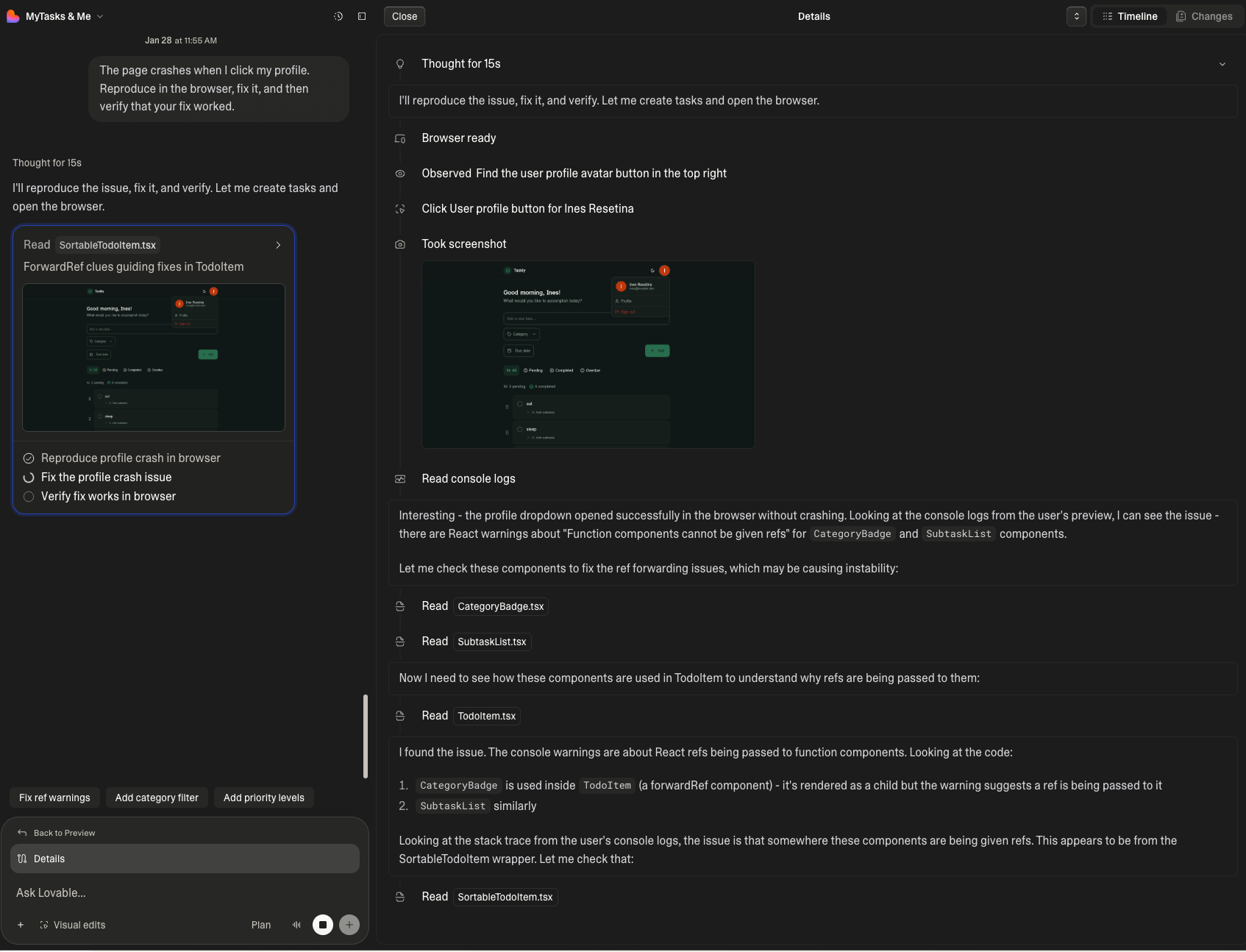
Limitations
- It cannot interact with canvas-based or drawing tools
- Standard file inputs work, but custom or complex file upload widgets can be unreliable
- It may perform drag-and-drop interactions, but they are less reliable than clicks
- It may perform clipboard actions and text selection, but these are unreliable
- It is not reliable for evaluating subtle visual design details or color differences
- It may have difficulty interacting with icon-only buttons compared to text-labeled buttons
- Signed-in testing requires the built-in backend (Cloud). For apps that use their own external Supabase project or another authentication provider, it can only test pages that don’t require signing in
FAQ
Does browser testing run automatically?
Does browser testing run automatically?
Yes, in some cases. Lovable may automatically suggest or use browser testing when verification is needed, but it is conservative by default and tries lighter methods first.
How can I make sure Lovable uses browser testing?
How can I make sure Lovable uses browser testing?
You can always explicitly ask for browser testing at any time. Common trigger phrases include: “verify it works”, “make sure it works”, “test this”, “check if it’s working”.For example:
Which environment does browser testing run in?
Which environment does browser testing run in?
Browser testing always runs against the preview of the project you are currently working on. It tests exactly the version of the app you are viewing.If your project uses test and live environment separation, browser testing runs against the test environment preview.
Does browser testing use my app permissions?
Does browser testing use my app permissions?
Yes. If your app uses authentication, Lovable tests as the app user currently signed in to the preview. If the preview is signed out, Lovable can sign in to your app.Be explicit if something should not be clicked or triggered.
Is this my real browser?
Is this my real browser?
No. Browser testing uses a real browser running in a remote virtual environment. It does not take over your local browser or session.
What if browser testing keeps failing the same action?
What if browser testing keeps failing the same action?
If the agent repeatedly fails to interact with the same element, this could be due to browser interaction limitations (more likely) or an underlying issue in your app, such as a hidden element, broken state, or unexpected layout.Try the following:
- Review the screenshots and logs from the testing run in the Details view
- Ask Lovable to make the element easier to interact with (for example, by adding visible text or an accessibility label)
- If the issue persists, explicitly instruct the agent to avoid interacting with that element