

What is a credit?
A credit is the unit Lovable uses to measure and pay for usage across your workspace. Credits let you build apps, chat with Lovable, run deployed apps, and power AI features from one balance. Your credits cover five types of usage:
In Usage details, build and chat usage appear together under Build credits, and Cloud, AI gateway, and connector usage under Run credits. These are reporting views, not separate credit balances.
Where credits come from
Your workspace receives credits from two kinds of sources:- Usage-specific grants, which apply only to one type of usage.
- General credits, which can be used to build your app, chat with Lovable, host your app and run its built-in backend (Cloud), and power AI features in deployed apps.
Lovable always uses usage-specific grants before general credits. After usage-specific grants run out, Lovable uses the general credits closest to expiry first.
Usage-specific grants
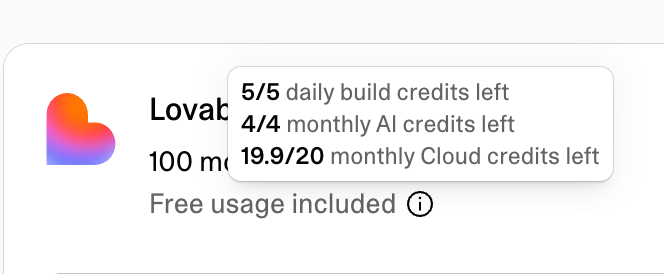
Usage-specific grants are included credits that apply to one type of usage. Each grant belongs to the workspace, so everyone in the workspace draws on the same pool. Lovable always uses them before general credits. For example, the daily chat allowance applies only to chat usage. Daily build credits cover build usage and, after the daily chat allowance is used up, chat usage. The monthly Cloud grant applies only to Cloud usage, and the monthly AI grant applies only to AI gateway usage. Usage-specific grants refresh automatically, but their refresh schedule depends on the grant and plan type. Unused usage-specific grants do not roll over. Usage-specific grants and general credits are not separate pools. When a grant runs out, the usage it covers draws from your general credits, so you can keep building, chatting, and running your deployed apps as long as your workspace has credits available.
Included usage-specific grants by plan:
Monthly Cloud, AI, and connector grants are a temporary offering and subject to change. The current chat pricing model, including the per-message price and the daily chat allowance, is also temporary and subject to change. See Chat costs.
General credits
General credits can be used after usage-specific grants run out to build your app, chat with Lovable, host your app and run its built-in backend (Cloud), and power AI features in deployed apps.
You can see a breakdown of your general credit types and their expiry dates in the Credit balance dialog.
All unused monthly plan credits automatically roll over at the end of each billing cycle, as long as your subscription remains active. Rollover credits still expire on the schedule in the table above: 2 months after they were issued on monthly plans, and 1 month after the annual billing period ends on annual plans.
Usage costs
Credits are used across four areas: building your app, chatting with Lovable, hosting your app and running its built-in backend (Cloud), and powering AI features in deployed apps. Each area uses credits differently, based on the type of work performed or resources consumed. To see where your credits are going over time, use Usage details.Build costs
Build usage covers Plan mode and Build mode messages in the project chat, work a chat sends to a project, and the images and videos Lovable generates, in a project or in a chat. Messages in Chat mode, the third mode in the project chat, are chat usage and follow the chat pricing model. See Chat costs.
Use Plan mode to think through an idea, investigate a problem, compare approaches, or create a plan before changing code. Plan mode never modifies your code. A Plan mode message costs 1 credit, plus the cost of any subagent research Lovable runs while planning, so a message that needs deep research costs more than 1 credit. See How Plan mode messages are priced.
Use Build mode when you want Lovable to implement changes directly in your project. Build mode pricing is usage-based. Small, focused edits usually cost less than larger generations, multi-step changes, or requests that require more codebase exploration, verification, browser checks, web search, or image and video generation.
Here are some illustrative Build mode examples:
Credit costs shown are illustrative examples. Actual credits used vary depending on the complexity and scope of your specific project.
/goal command is also billed on the work Lovable does, but costs noticeably more: the same work uses more credits, and Lovable keeps working until the goal is achieved.
Build costs are the same wherever you build. A Build mode message you send in a draft costs the same as one in the main version of your project, and creating, updating, accepting, and deleting a draft don’t use credits.
Chat costs
Chat usage follows its own pricing model, including a per-message price and a daily chat allowance. It covers messages in Chats, in Chat mode inside a project, and to Lovable in Slack or Telegram, including each request you make in a voice conversation. Lovable prices each message on the work it does to answer, typically a fraction of a credit. Chat usage draws from the daily chat allowance first, then from your daily build credits, then from your general credits, at the same per-message price. Enterprise plans do not include a daily chat allowance, so chat usage in an Enterprise workspace uses the workspace’s credits from the first message.Temporary offering, subject to change. The current chat pricing model, including the per-message price and the daily chat allowance, applies through October 31, 2026. Pro and Business workspaces receive a larger daily chat allowance than Free workspaces. This pricing applies to messages in Chats and Chat mode, including messages sent through Slack or Telegram and requests made by voice.Build mode, Plan mode, image and video generation, and Cloud and AI usage follow their standard pricing and are not part of this offer.
- Chat usage over time: Go to Workspace settings → Plans & credit usage → Usage details, select Build credits, and read the Chat group. See Reading the chart.
- Allowance left today: The Daily chat credits row on Plans & credit usage shows the percentage of today’s allowance left. See View your credit balance.
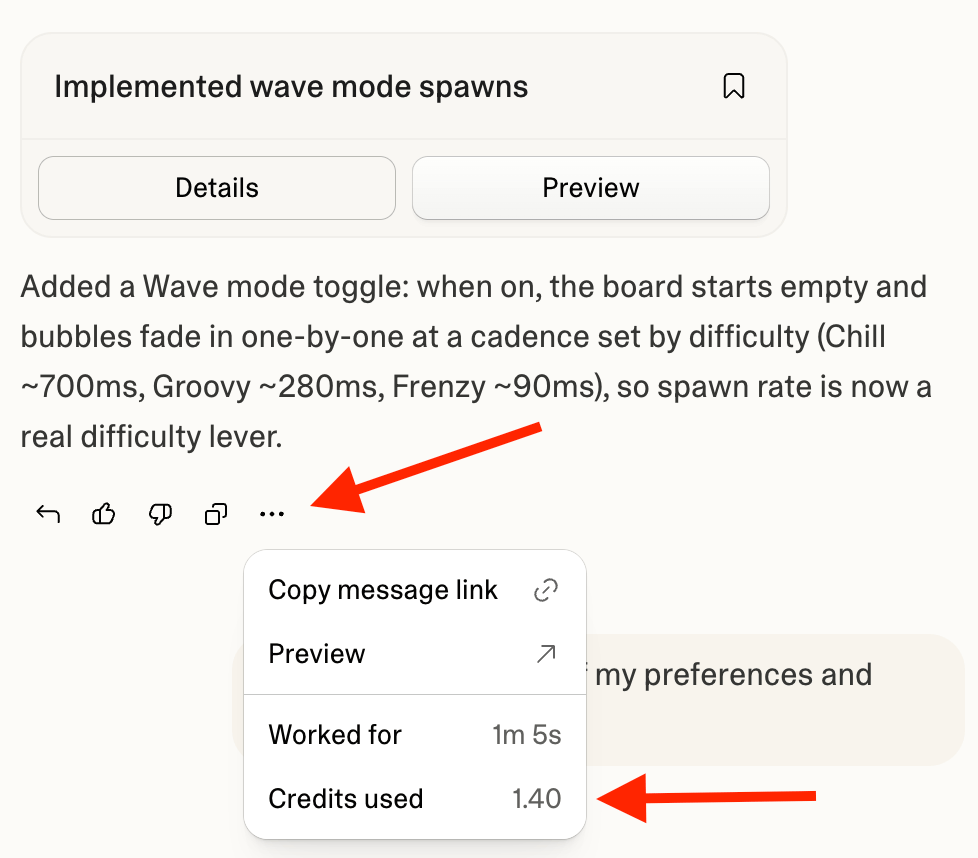
- Inside Chats: The mode picker, a chat’s title menu, and the menu on each reply also show the allowance state. See Track your allowance and usage for each place, with screenshots.
Cloud costs
Cloud usage is measured based on the hosting and built-in backend resources your deployed app consumes. It draws from your available credits, starting with any monthly Cloud grant included in your plan.
Images Lovable generates or edits for you while building, such as changing an image’s style or removing its background, are build usage and appear under Image generation. Image files your app stores and serves are Cloud usage: they count toward Storage while stored and toward Network when your app sends them to visitors.
Cloud usage usually increases when more people visit your app, your app stores more data or files, users upload or download larger files, your app sends more API responses or media, your app runs more code behind the scenes, or Realtime features send more messages. For more information, see the built-in backend (Cloud).
To reduce a project’s usage, work through the checklist in Reduce a project’s usage: pausing, right-sizing the instance, fixing slow queries, cleaning up storage, or removing the built-in backend entirely.
To review Cloud usage, go to Workspace settings → Plans & credit usage → Usage details, then select Run credits. You can filter by time range and view usage by project. The More → Usage view inside a project shows the same breakdown, already filtered to that project, so you can see which categories drive its usage while you work on it.
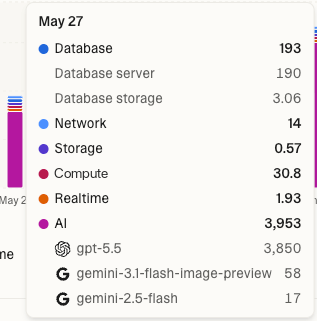
The Run credits view includes Cloud, AI gateway, and connector usage. The usage chart breaks Cloud usage into categories such as Database, Network, Storage, Compute, and Realtime. Database usage includes both database server and database storage.
AI gateway costs
AI gateway usage is measured when AI features inside your deployed app make model calls. These requests are separate from the Lovable agent that helps you plan, build, and edit your project. The built-in AI connector runs on a usage-based pricing model, so credit usage scales with how much your app uses AI features. Each model call deducts credits based on the model used and the amount of work performed, such as text tokens, generated images, or seconds of generated video or voice conversation. On Free, Pro, and Business plans, AI gateway usage draws from the monthly AI grant first. After that, it draws from general credits if available. AI gateway usage rates are based on the underlying provider model costs. To estimate relative model costs, refer to the official provider pricing sources linked from the model tables on AI features for your app.
For more information, see AI features for your app.
To review AI gateway usage, go to Workspace settings → Plans & credit usage → Usage details and select Run credits. You can filter by time range and view usage by project.
The Run credits view includes Cloud, AI gateway, and connector usage. The usage chart shows the top models used (see image in Cloud costs).
Connector costs
Some connectors, such as Perplexity, Firecrawl, and Parallel, offer a Managed by Lovable option that bills usage through Lovable credits instead of a provider account. Lovable charges requests through such a connection to the workspace the connection belongs to, at the rate on the connector’s page. Connector usage draws from the monthly connector grant included in your plan first, then from your general credits. The monthly Cloud and AI grants do not cover it. To review connector usage, go to Workspace settings → Plans & credit usage → Usage details and select Run credits. The usage chart breaks connector usage down by connector.View your credit balance
You can check your credit balance from the dashboard, the project editor, or Workspace settings → Plans & credit usage. You can also ask Lovable in the project chat. The credit bar shows your remaining daily build credits, monthly credits, personal credits, team credits, or commitment credits, depending on your plan. The filled part of the bar is what you have left, so the bar gets shorter as you use credits. On Enterprise plans, the credit balance panel on Plans & credit usage shows numbers in place of a bar. Workspace admins and owners see how many workspace credits remain and the workspace total, for example 6,400 remaining of 10,000. When the workspace has used more than its commitment, the panel shows a Limit reached warning and an Overage credits row. Other members see only their own personal credits. The daily chat allowance is not part of the credit bar. On Plans & credit usage, the Daily chat credits row at the bottom of the credit balance panel shows the percentage of today’s allowance left, and its info tip shows when it resets. Once the allowance is used up, the row reads Used up for today. Chats now use your build credits., which means chat usage now draws on your daily build credits, then your general credits. The row can also note that no build credits are left or that a credit limit paused chats. The row does not appear on Enterprise plans.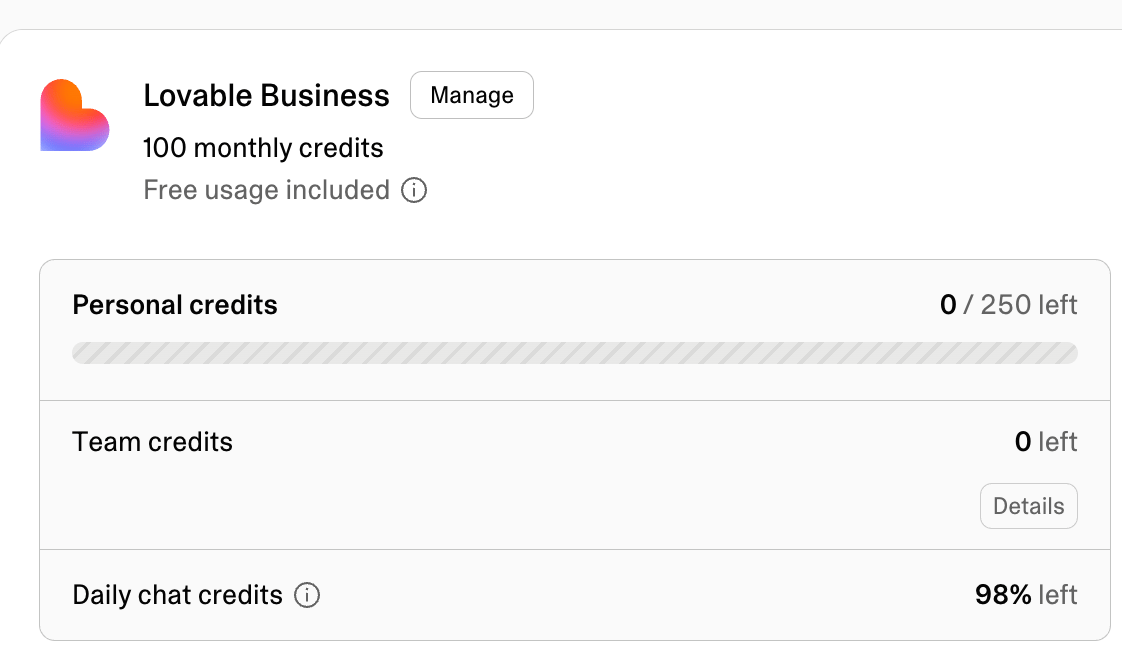
Breakdown tab
Available on Pro and Business plans. Not shown for Enterprise. The Breakdown tab lists your general credit grants, including each grant’s type, expiry date, and remaining amount. Grants expiring soonest appear first. A note at the top of the tab confirms that Lovable uses the general credits closest to expiry first.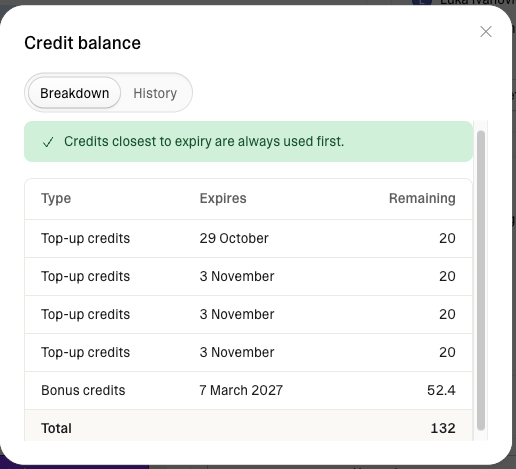
*Not all credit types appear for every workspace.
History tab
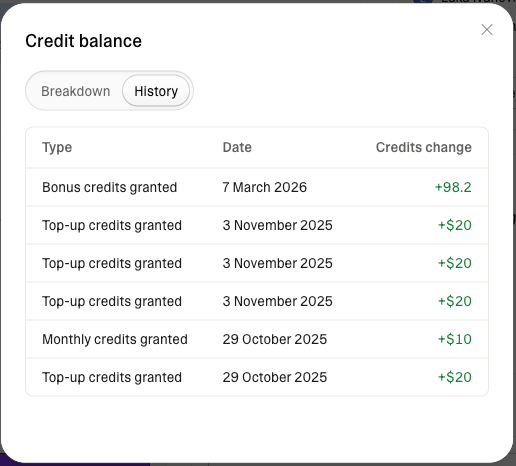
Available on Pro, Business, and Enterprise plans. The History tab shows credit activity for up to the past 12 months, sorted newest first.Because credit history recording started on March 8, 2026, early history may show less than 12 months of activity. Over time, the tab will show a full 12 months of credit history.
Tracking credit usage
Go to Workspace settings → Plans & credit usage → Usage details to see a detailed breakdown of where your credits go across build, chat, Cloud, and AI gateway usage. The Usage card on the Plans & credit usage page shows recent usage at a glance. Select More usage details to open the full Usage details page.Usage visibility by role
Usage visibility depends on your workspace plan, workspace role, the usage type, and whether you have access to the project.On Enterprise workspaces, editors see usage for the projects they can edit, plus their own usage. Workspace totals, other members’ usage, and projects they cannot edit are visible to admins and owners only.
Filters
Narrow the view with these filters:- Credit type: switch between All credits, Build credits for build and chat usage, or Run credits for Cloud, AI gateway, and connector usage.
- Project: see usage per project across All credits, Build credits, or Run credits. Admins and owners see every project. Editors see the projects they own, or on Enterprise the projects they can edit. Selecting a project updates the chart to show that project’s usage for the selected credit type. Clear the selected project to return to the full view.
- People: see your own usage under Build credits, or, if you are an admin or owner, see it per workspace member. This filter is only available when viewing Build credits. Selecting a person updates the chart to show that person’s usage. Select View details to open User insights for that member. Clear the selected person to return to the full view.
- Group: admins and owners can see usage under Build credits per group. This filter is only available when viewing Build credits, and is available to Business and Enterprise workspaces. Selecting a group updates the chart to show that group’s usage. Clear the selected group to return to the full view.
- Time range: view the last 30 days, last 90 days, all time, or a custom range of up to 90 days.
Reading the chart
The heading above the chart shows your total credits for the current filter and time range, such as 5,352 credits in last 30 days. The chart shows daily credit consumption. Hover over a bar to see the details for that day. Usage data may be up to a minute behind your most recent activity. New Run credit usage can take up to 24 hours to appear. Each bar breaks down by the credit type you selected:- All credits shows usage under Build credits and Run credits.
- Build credits shows Build, which covers Plan mode and Build mode messages and other work in your projects, Chat, which covers chat usage, and Image generation and Video generation, which cover images and videos Lovable generates while it works. Chat usage covered entirely by the daily chat allowance or your daily build credits does not appear. Only chat usage that drew on your general credits counts. Images and videos that your published app generates through its AI features are AI gateway usage and appear under Run credits instead.
- Run credits shows Cloud usage, AI gateway usage, and connector usage. Cloud usage breaks down into Database (server and storage), Network, Storage, Compute, and Realtime. AI gateway usage shows a breakdown by the top three models used. Connector usage shows a breakdown by connector.

Usage history under Run credits, which includes Cloud, AI gateway, and connector usage, starts on the date your workspace switched to the unified credit balance (June 1, 2026 at the earliest). Dates before then show usage under Build credits only.
See how much your free allowances covered
Next to the total above the chart, Usage details shows how many of those credits your free allowances covered, for example 42 credits covered by free allowance. The free allowances are your plan’s usage-specific grants: the daily chat allowance, daily build credits, and the monthly Cloud, AI, and connector grants. The covered total appears only when the free allowances covered some usage in the selected time range. The chart has two views:- By category (default): each bar is split by usage category. Hover over a bar to see how many credits the free allowances covered in each category.
- By coverage: each bar is split into Covered by free allowance and Other usage, so you can see when your usage drew on your general credits.
Projects and People tabs
Below the chart, usage is broken down in two tabs:- Projects (My projects for editors): credits used per project across the selected credit type. Search and sort projects by usage, then select a project to apply the filter and update the chart.
- People: usage under Build credits per workspace member, including chat usage. This tab is available when viewing Build credits. Search and sort members by usage, then select a person to apply the filter and update the chart.
Admins and owners see every project. Editors see the projects they own, or on Enterprise the projects they can edit.Editors, admins, and owners can view their own usage under Build credits. Usage for other workspace members is visible to admins and owners only.On Enterprise workspaces, workspace totals and other members’ usage are visible to admins and owners only.
Ask Lovable what drives your run credit usage
If a project or workspace uses more run credits than you expect, ask Lovable in the project chat or in Chats what drives the usage. Lovable reads the recorded usage, investigates the app’s scheduled jobs, functions, database, storage, network, realtime, and AI activity, traces what it finds to the project’s code, and suggests fixes. For example, ask Why is this project using so many credits?, How do my scheduled jobs affect my Cloud usage?, or Which projects use the most run credits in this workspace? Workspace admins and owners can also start the investigation from the usage chart. In Workspace settings → Plans & credit usage → Usage details, Optimize your usage appears below the chart when the workspace used more than 5 run credits in the last 7 days. Select it to start a workspace-wide investigation in Chats. In a project, the same button in More → Usage starts the investigation in the project chat, in Chat mode, where Lovable does not edit your project’s code.
Workspace editors can ask about a project they can edit. Workspace admins and owners can ask about any project, and only they can ask about the whole workspace.
In Chats, Lovable ranks the projects and usage categories that drive your workspace’s run credit usage. Lovable does not read project code from Chats during an investigation. To trace a project’s usage to its code, continue in that project’s chat.
By default, Lovable looks at the last 14 days of recorded usage. You can ask for a longer period, up to 30 days.
Lovable counts days in UTC. New run credit usage can take up to 24 hours to appear, so the latest activity may be missing.
Asking for an investigation lets Lovable inspect your usage, code, logs, and database diagnostics. It does not change your plan or your credit balance. Lovable proposes changes such as deleting old data, resizing your instance, or changing job schedules, and makes them only when you ask for them.
In the project chat, Lovable inspects the project’s code and the relevant runtime diagnostics before it recommends anything. When a measurement is unavailable, Lovable says which one. A question such as Why is this project using so many credits? gets a diagnosis and proposed fixes, not code changes.
To have Lovable apply a fix, ask for that specific fix in Build mode. Lovable still diagnoses first, then makes the change, subject to any approvals the change needs. To investigate without code changes, ask in Chat mode.
What happens when you run out of credits
On Pro and Business plans, workspace admins and owners can add credits with a one-time top-up or let Lovable add them automatically with auto top-up. See Credit top-ups. When your workspace has no credits left, building stops, AI features in deployed apps stop working, and apps that use the built-in backend (Cloud) pause. See Low credit balance and out-of-credits recovery for what stops, how to get running again, and how Lovable warns you before the balance reaches zero.FAQ
How do I get more credits?
How do I get more credits?
Go to Workspace settings → Plans & credit usage. From there you can upgrade your plan or, on Pro and Business plans, buy credit top-ups without changing your subscription. The low-credits alert in the project chat opens the same options. Workspace admins and owners can top up in one of two ways:
- One-time top-up: select Add credits, then Buy once, and choose an amount. The credits are added to your workspace when the payment is confirmed, usually within a minute.
- Auto top-up: Lovable buys credits automatically when your balance reaches or falls below a threshold you set, up to an optional monthly limit.
How were Cloud and AI balances converted into credits?
How were Cloud and AI balances converted into credits?
Previous Cloud and AI balances were converted using each workspace’s plan credit rate.Pro and Business use different plan credit rates because Business plans include additional functionality, such as advanced controls and governance features. For the full feature comparison, see Subscription plans.
Because Pro and Business use different plan credit rates, the same previous Cloud and AI balance can convert into a different number of credits depending on the workspace plan.This does not mean Cloud or AI gateway usage is cheaper on Business. It means fewer credits are deducted because each Business credit represents more dollars.The number of credits is different, but the Cloud and AI gateway value is the same.
Do my credits expire?
Do my credits expire?
Yes. Different credit types expire at different times:
- Monthly plan credits expire 2 months after issue on monthly plans. On annual plans, monthly plan credits are issued monthly and expire 1 month after the annual billing period ends.
- Top-up credits expire 12 months after purchase.
- Monthly Cloud grants expire at the end of the calendar month on Free plans, and at the end of the billing cycle on Pro and Business plans.
- Monthly AI grants expire at the end of the calendar month on Free plans, and at the end of the billing cycle on Pro and Business plans.
- The daily chat allowance expires at the end of the day.
- Daily build credits expire at the end of the day.
Do unused monthly plan credits roll over?
Do unused monthly plan credits roll over?
Yes. Unused monthly plan credits roll over at the end of each billing cycle, as long as your subscription remains active. Rollover credits stay available until their original expiry date: 2 months after issue on monthly plans, and 1 month after the annual billing period ends on annual plans.Rollover applies to monthly plan credits only. Usage-specific grants, such as the daily chat allowance, daily build credits, and the monthly Cloud and AI grants, expire on their own schedule instead. See Do usage-specific grants roll over? for details.
Do usage-specific grants roll over?
Do usage-specific grants roll over?
No. Unused usage-specific grants do not roll over.
- The daily chat allowance refreshes every day at 00:00 UTC.
- Daily build credits refresh every day at 00:00 UTC.
- On Free plans, monthly Cloud and AI grants refresh on the 1st of each calendar month at 00:00 UTC.
- On Pro and Business plans, monthly Cloud and AI grants refresh with the subscription billing cycle.
Which plans include a monthly AI grant?
Which plans include a monthly AI grant?
Free, Pro, and Business plans all include a 4-credit monthly AI grant for AI gateway usage in deployed apps. On Free, the grant refreshes on the 1st of each calendar month at 00:00 UTC. On Pro and Business, it refreshes with the subscription billing cycle. Unused AI grant credits do not roll over.Enterprise plans do not include the monthly AI grant. Contact your account team for account-specific details.
Which plans include a daily chat allowance?
Which plans include a daily chat allowance?
Free, Pro, and Business plans include a daily chat allowance, part of the chat pricing model, for chat usage: messages in Chats, Chat mode, and Lovable in Slack and Telegram. Pro and Business workspaces receive a larger daily chat allowance than Free workspaces. The allowance refreshes every day at 00:00 UTC and does not roll over.Enterprise plans do not include a daily chat allowance. Chat usage in an Enterprise workspace uses the workspace’s credits from the first message.
Do messages in Chats and Chat mode use credits?
Do messages in Chats and Chat mode use credits?
Yes. Messages in Chats and Chat mode, like messages to Lovable in Slack and Telegram, are chat usage, which follows its own pricing model, including a per-message price and a daily chat allowance. Each message is priced on the work Lovable does to answer it, typically a fraction of a credit. The daily chat allowance covers chat usage first. When it is used up for the day, chat usage draws on your daily build credits, then your general credits, at the same per-message price. Work a chat sends to a project, and Build mode messages, are build usage. See Chat costs.
Why doesn't my chat usage appear in Usage details?
Why doesn't my chat usage appear in Usage details?
Usage details shows credits your workspace spent from its balance. Chat usage covered entirely by the daily chat allowance or your daily build credits does not appear. Chat usage that drew on your general credits appears under Chat in the Build credits view. To check a single message, open the More options menu on Lovable’s reply. See Chat costs.
When do monthly plan credits reset?
When do monthly plan credits reset?
Monthly plan credits are granted at the start of each billing period. This happens every month on the same date your subscription started.On annual billing, monthly plan credits are still issued monthly and expire 1 month after the annual billing period ends.To see your billing period, go to Workspace settings → Plans & credit usage.
Can I see my balance without opening Settings?
Can I see my balance without opening Settings?
Yes. You can quickly check your credit balance from the dashboard or from a project.From the dashboard, click your workspace name in the top-left. In the project editor, click your workspace name at the top of the sidebar, or the project name at the top when the window is too narrow to show the sidebar. See View your credit balance for the steps in a narrow window.The credit bar does not include the daily chat allowance. To see how much of it is left, hold the pointer over the Free badge on the Chat option in the mode picker, on the dashboard or in the project chat, or select a chat’s title inside the chat.
Does the credit bar show credits used or credits left?
Does the credit bar show credits used or credits left?
Credits left. The filled part of the bar is what you have left, and it empties as you use credits. On Enterprise plans, Plans & credit usage shows the credits remaining as a number instead of a bar.
Can I see which project or member is using the most credits?
Can I see which project or member is using the most credits?
Yes. Open Usage details from Plans & credit usage.You can filter by project across All credits, Build credits, and Run credits. You can filter by member or group (on Business and Enterprise) when viewing Build credits.Workspace admins and owners can also ask Lovable in Chats which projects use the most run credits. See Ask Lovable what drives your run credit usage.
Can I limit how many credits members can spend?
Can I limit how many credits members can spend?
Yes. Workspace owners and admins can set monthly credit limits for workspace members. Member credit limits apply to usage shown under Build credits: build usage, chat usage, and image and video generation. Usage shown under Run credits (Cloud, AI gateway, and connector usage) does not count against a member’s monthly limit.Create limits from Workspace settings → Usage limits & alerts: a default limit for all members, limits for specific members, and limits for groups, projects, or the whole workspace. Each limit can send an alert or block further usage when the threshold is reached. See Usage limits and alerts.You can also set a monthly credit limit for a specific member directly from Workspace settings → People:
- Click the three-dot menu at the end of the member’s row.
- Select Set credit limit.
- Enter the monthly credit limit and save.
How do I cancel my subscription?
How do I cancel my subscription?
Go to Workspace settings → Plans & credit usage, select Manage on your plan card, then select Downgrade to free in the Manage plan dialog and complete the downgrade flow. Your current plan remains active until the end of the current billing period. After that, your workspace moves to the Free plan. See Cancel your subscription.
Troubleshooting
I stopped receiving daily build credits. What happened?
I stopped receiving daily build credits. What happened?
You may have reached your monthly cap for daily build credits.Daily build credits are capped per calendar month on Free plans only. Free workspaces receive 5 daily build credits, up to 30 per calendar month. After a Free workspace reaches the cap, the daily 5 credits stop being granted for the rest of that calendar month. Daily build credits resume on the 1st of the next calendar month at 00:00 UTC. For example, on Free, you receive daily build credits for the first 6 days each month (6 × 5 = 30), then none until the next month starts.Pro and Business workspaces receive 5 daily build credits every day at 00:00 UTC, with no monthly cap.If you need more credits before then, upgrade your plan or add credits with a one-time top-up on a Pro or Business plan.